Live captions for events with MirrorCaption Events
MirrorCaption Events puts live captions and translation on every attendee's phone. You run MirrorCaption on one computer next to the sound, attendees scan a QR code, and up to 500 people follow along in their own language. They need no app and no account.
This guide walks through one event from start to finish: redeem the pass, set the languages, turn on recording, open the room, let people join, then export the transcript and audio. At the end you'll see two ways to show the captions on a big screen or your website: the desktop app's Subtitles style, or an iframe with no download at all.
🎟️
Before the event, have ready:
Your event pass code (it looks like XXXX-XXXX-XXXX-XXXX).
A computer that hears the speaker clearly: a feed from the mixer or a microphone close to the stage.
Wi-Fi or mobile data for attendees. With hundreds of phones, check the venue Wi-Fi in advance.
Run your event
Step 1 — Redeem your event pass
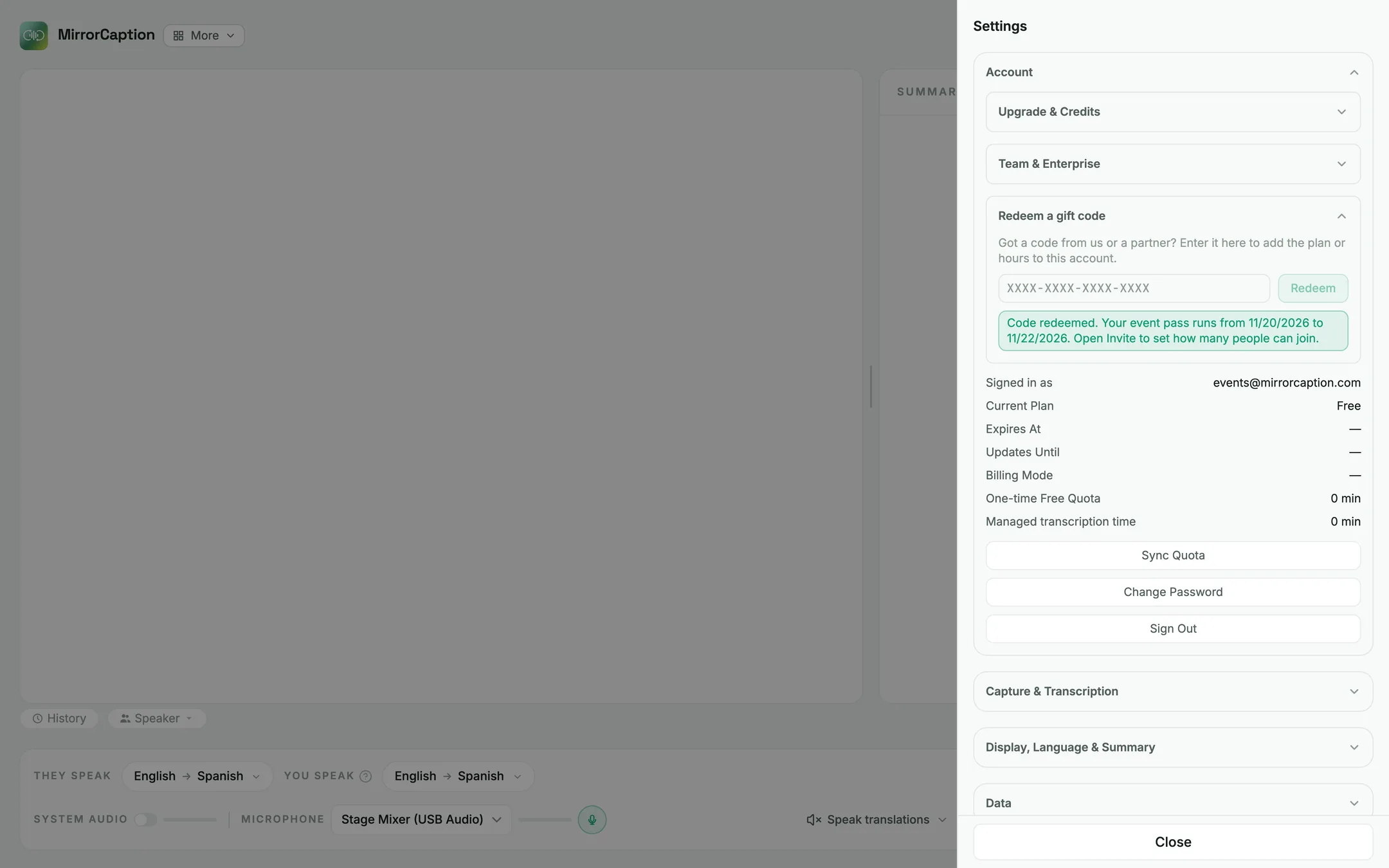
Open Settings → Account → Redeem a gift code, enter the code and click Redeem. If you were sent a link, opening it fills in the code for you.
MirrorCaption confirms the dates your pass is valid. From then on the pass belongs to your account, so it works in the browser and in the desktop app. Codes are redeemed on the website only; the store apps don't show this section.
Step 2 — Set the languages
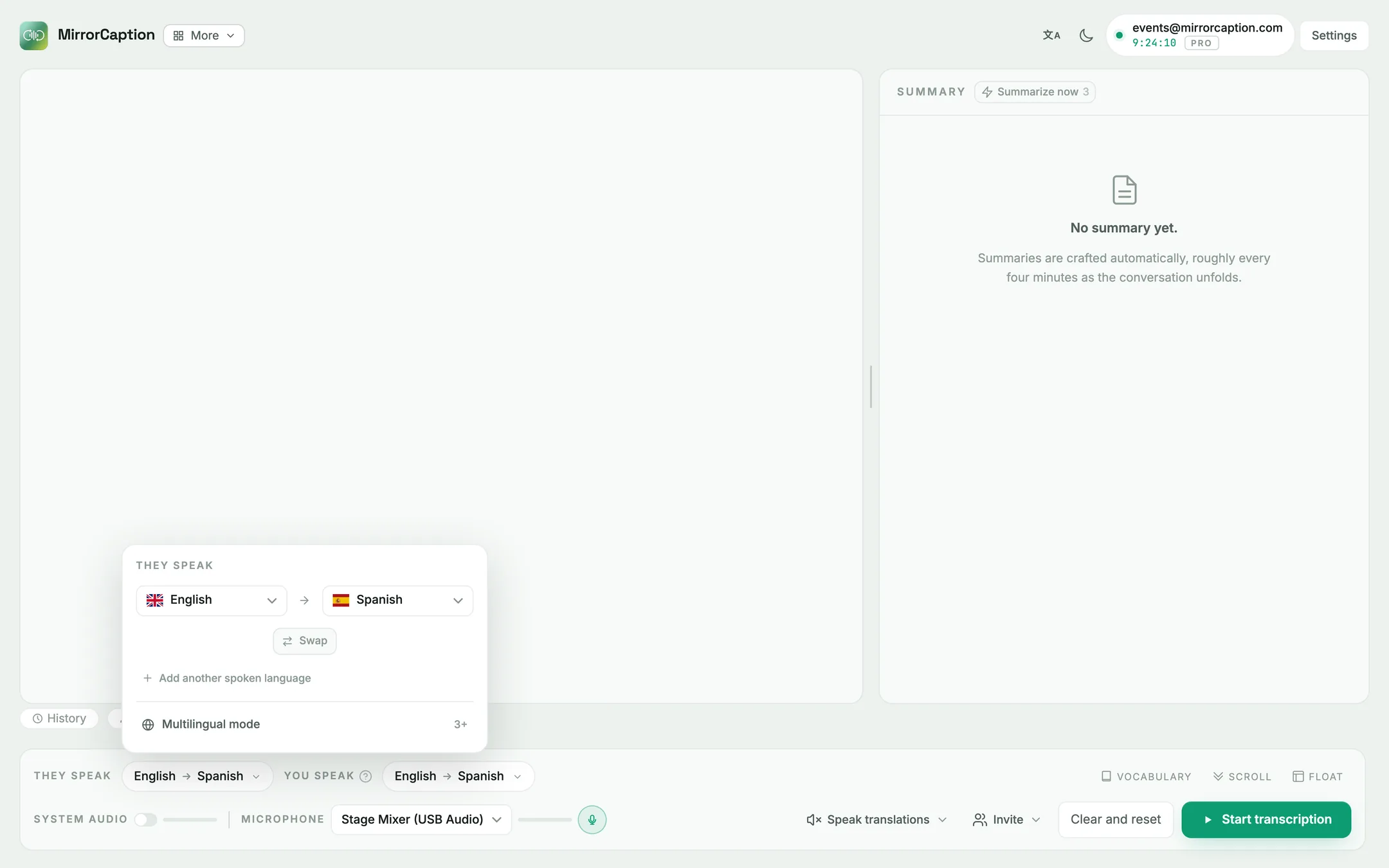
In the control bar, open They speak and choose the language on stage and the language attendees read. In this example the keynote is in English and attendees read Spanish under the English original.
Step 3 — Turn on recording before you start (optional)
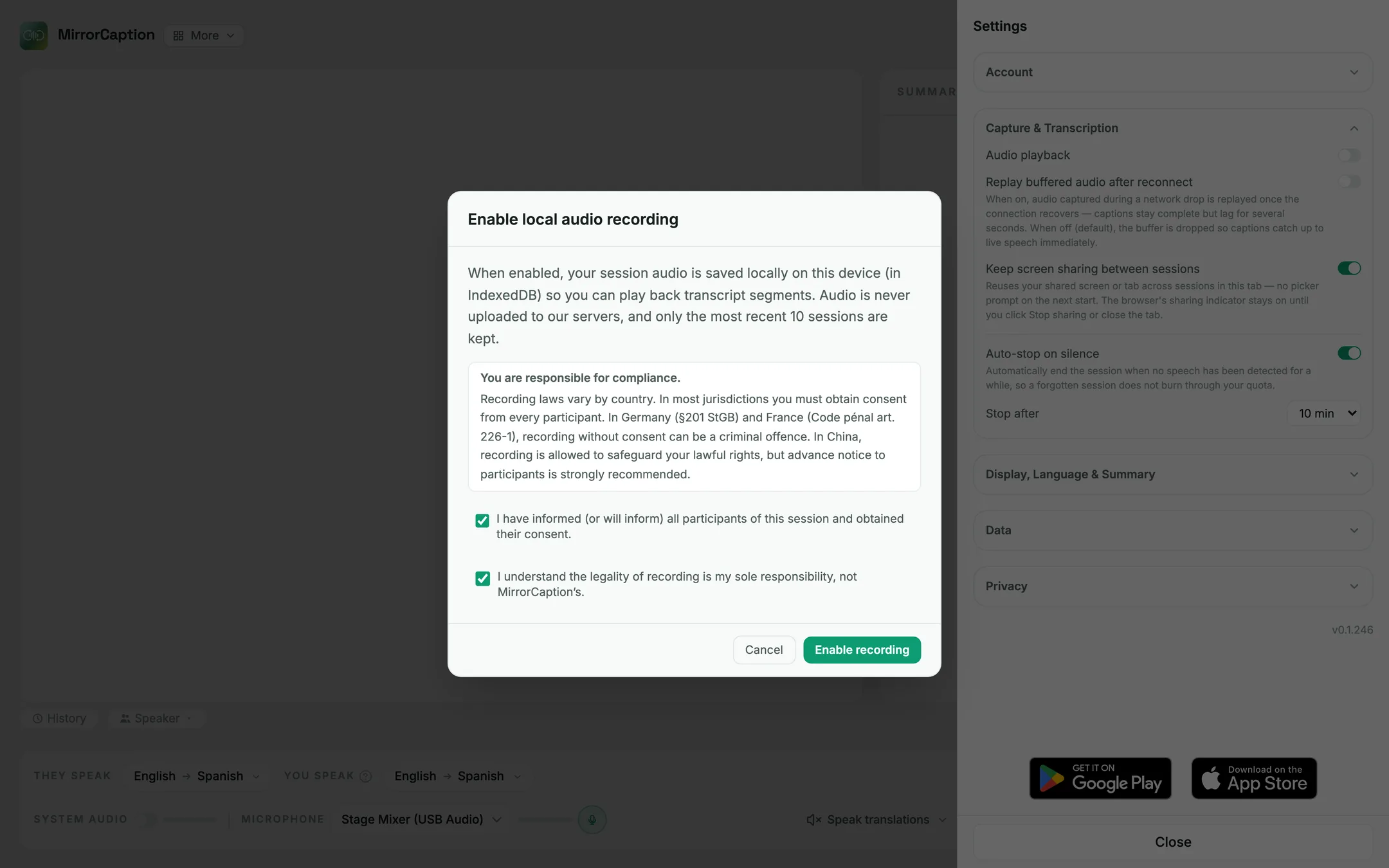
If you want the audio of the session, turn recording on before you press Start. A session that is already running can't be recorded afterwards.
Open Settings → Capture & Transcription and switch on Audio playback. Confirm the two consent statements and click Enable recording.
🔒
The audio stays on this computer and is never uploaded. By default the last 10 sessions keep their audio; change this under Sessions that keep audio. Recording laws differ by country, so tell your audience the session is recorded.
Step 4 — Open the room and show the QR code
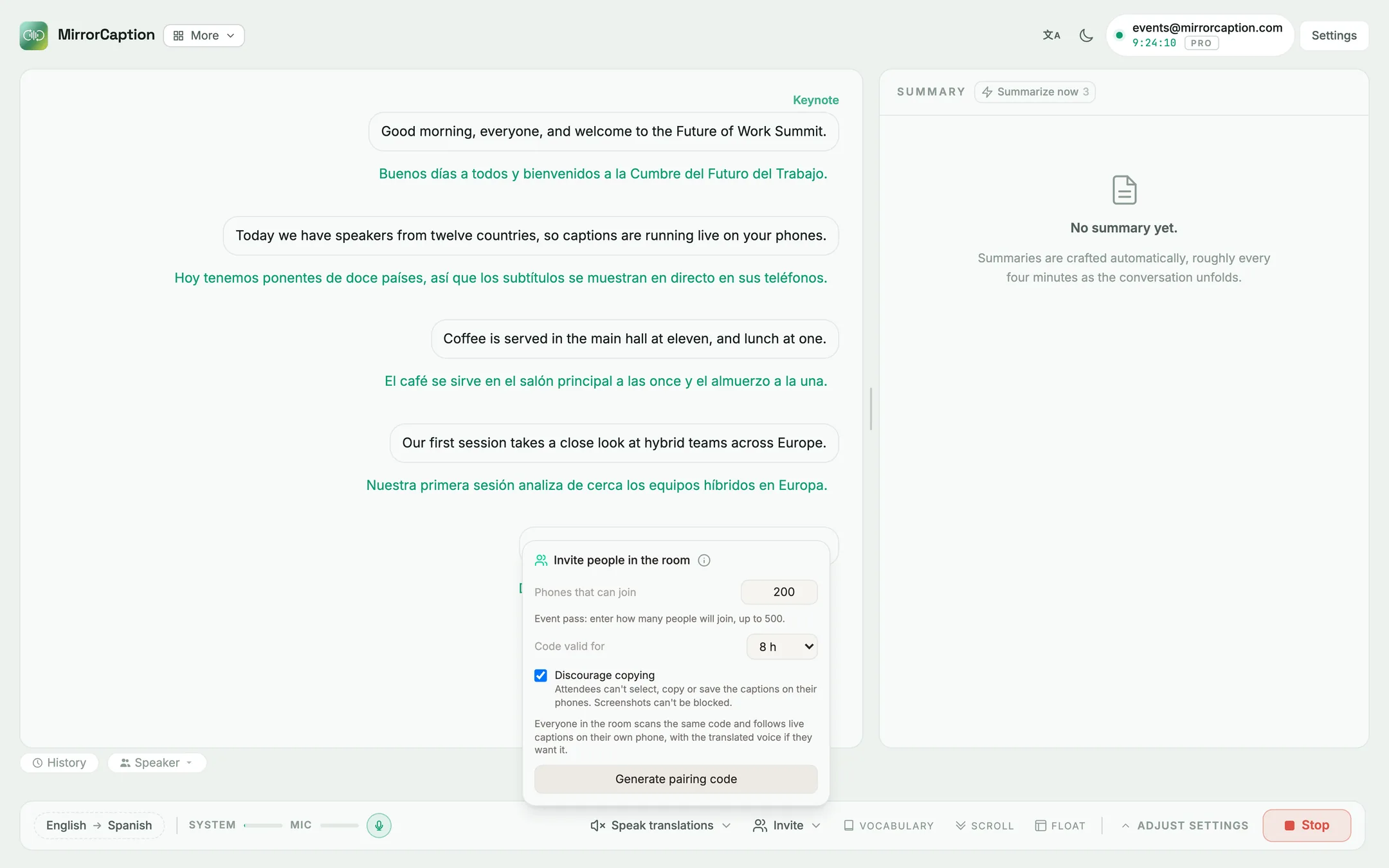
Click Invite in the control bar. With an event pass you can set:
Phones that can join: type how many people will join, up to 500.
Code valid for: from 15 minutes up to 24 hours. Choose a time that covers the whole event.
Discourage copying: attendees can't select, copy or save the captions on their phones. Screenshots can't be blocked.
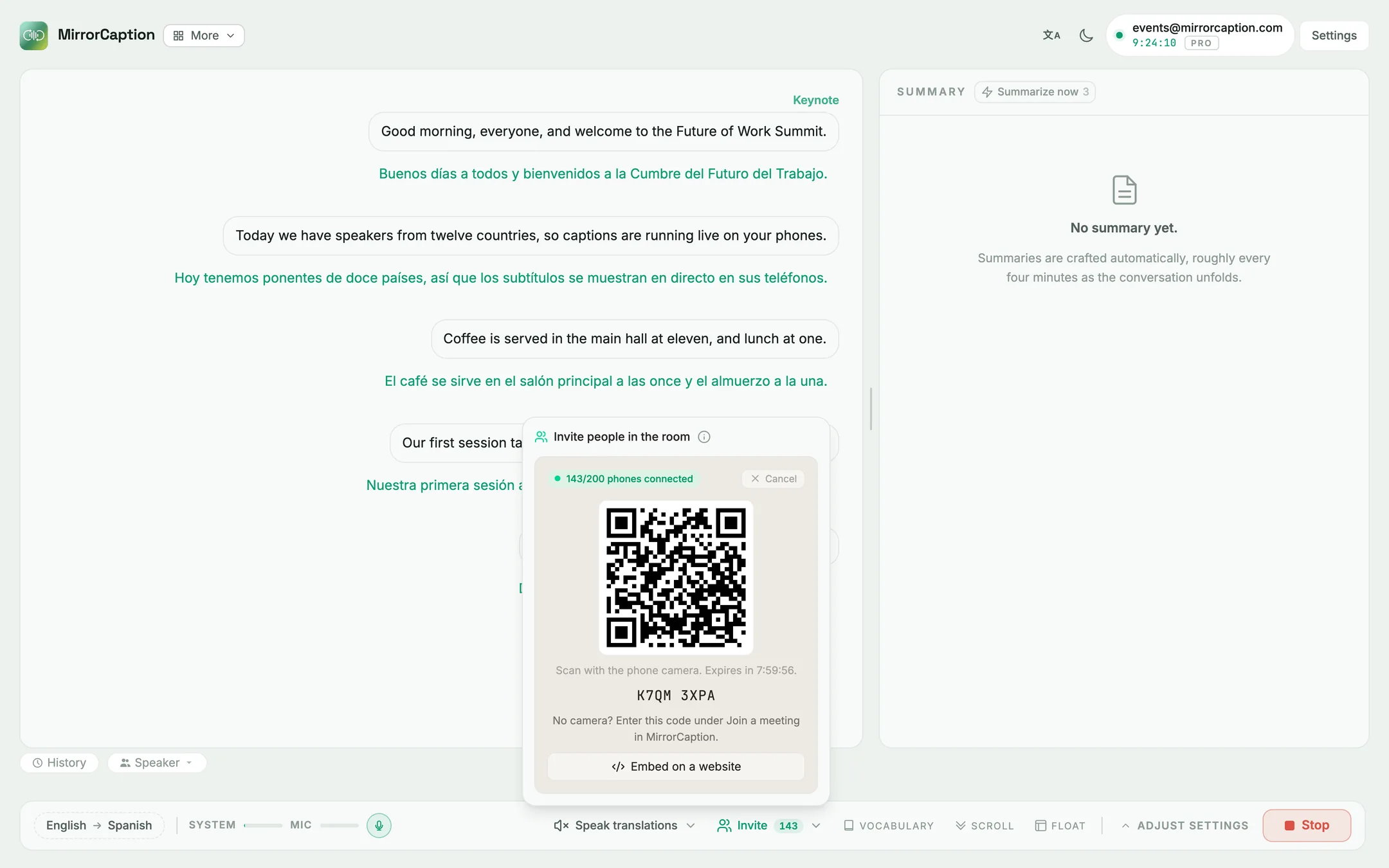
Click Generate pairing code. MirrorCaption shows a QR code and an 8-character code, and counts the phones that are connected.
Put the QR code on the stage screen, on printed signs or in your event app. You can generate it before doors open; it stays valid when you start the session. Then click Start transcription when the speaker begins.
Step 5 — Attendees scan and follow along
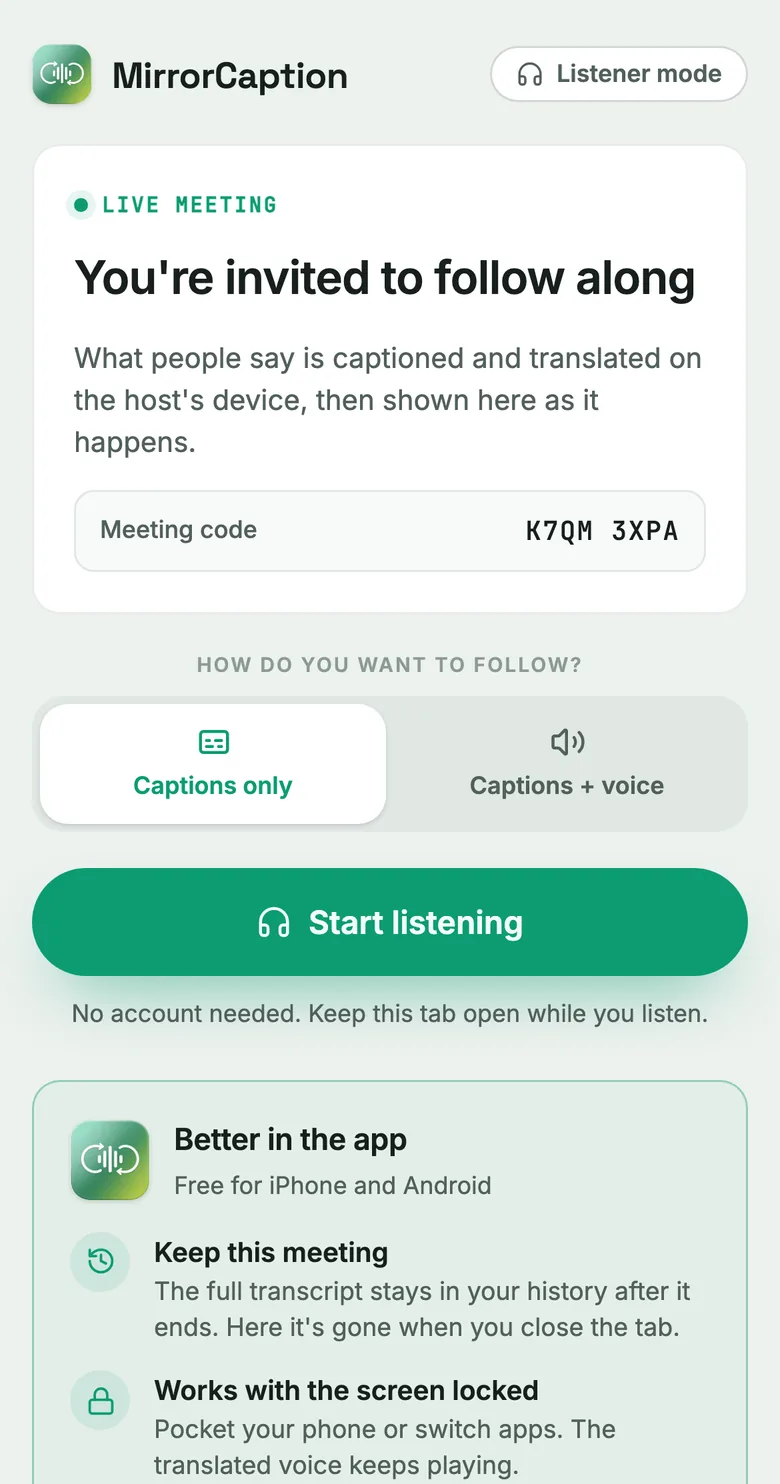
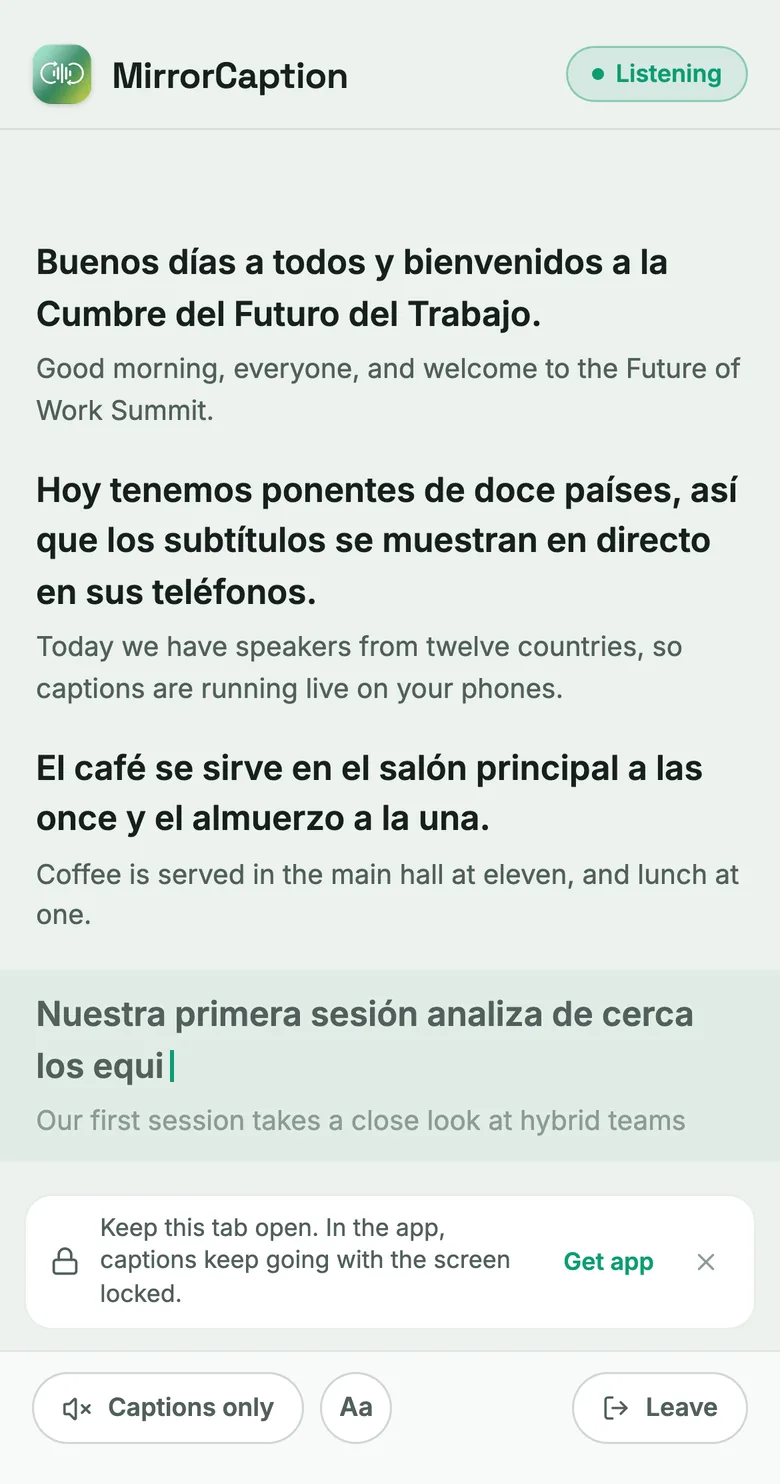
The QR code opens the caption page in the phone's browser. Attendees choose Captions only or Captions + voice and tap Start listening. No account and no app are needed. People without a camera can open mirrorcaption.com/voice and type the code.
The join page on an attendee's phone.Live captions in Spanish under the English original.
People who arrive late, or whose phone was locked, immediately see the last lines of the talk.
Captions + voice reads the translation aloud. It needs Speak translations turned on in your control bar; otherwise phones show Voice off.
With Discourage copying on, captions can't be copied and aren't kept after the attendee closes the page.
Step 6 — Export the transcript and the audio
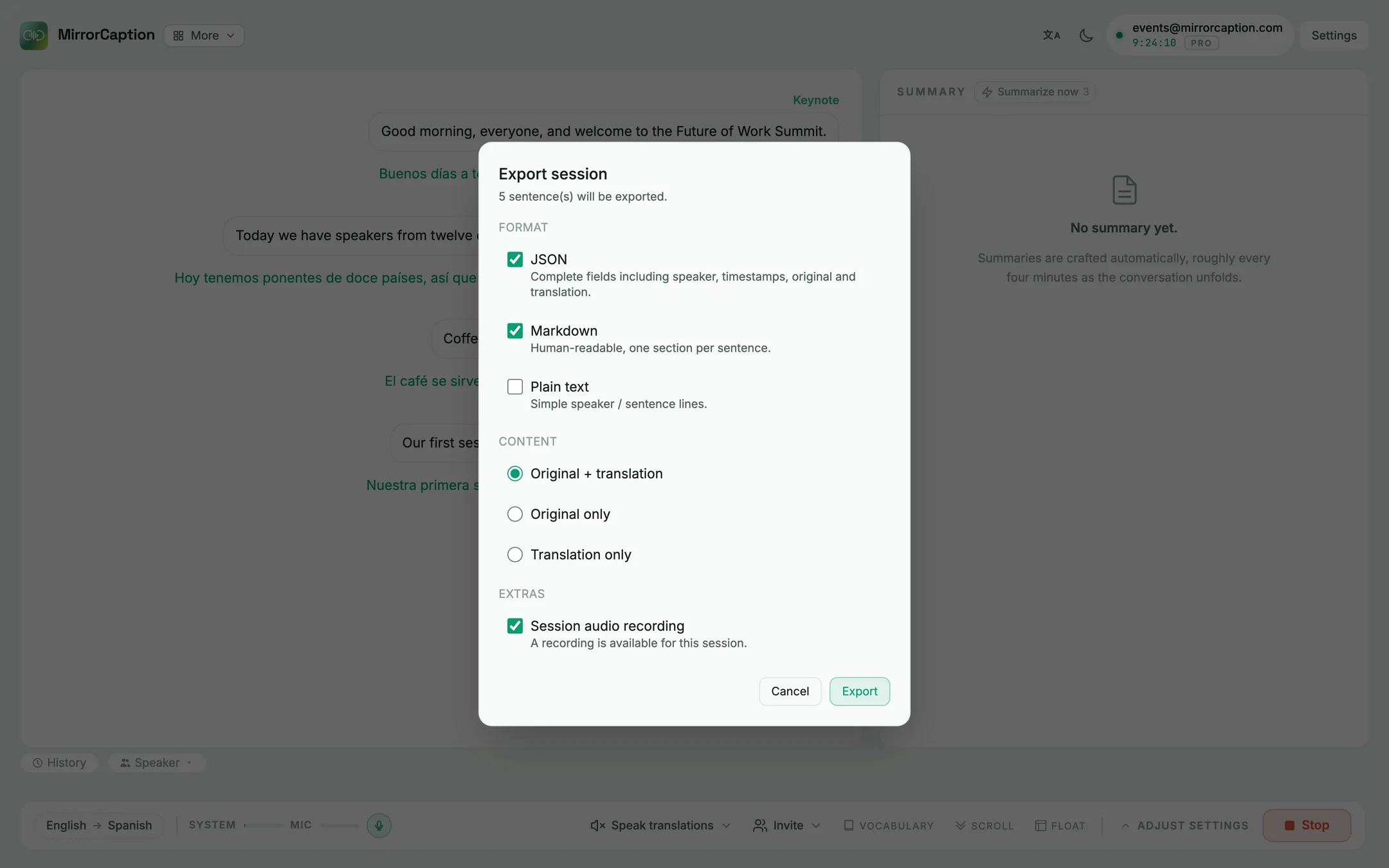
After the session, open the transcript's Tools menu (or the session in History) and choose Export session. Pick the formats, the content and, if you recorded, Session audio recording. Several files download together as one .zip.
What to tick
What you get
JSON
Every field: speaker, timestamps, original and translation
Markdown
Readable, one section per sentence
Plain text
Simple speaker / sentence lines
Session audio recording
The recording as stored (WebM in the browser, WAV or M4A in the apps)
Show the captions on a big screen or your website
Besides attendees' phones, you can put the captions where everyone sees them: on the projector, in the livestream or on your event website. There are two ways to do it.
Option A — The desktop app's Subtitles style
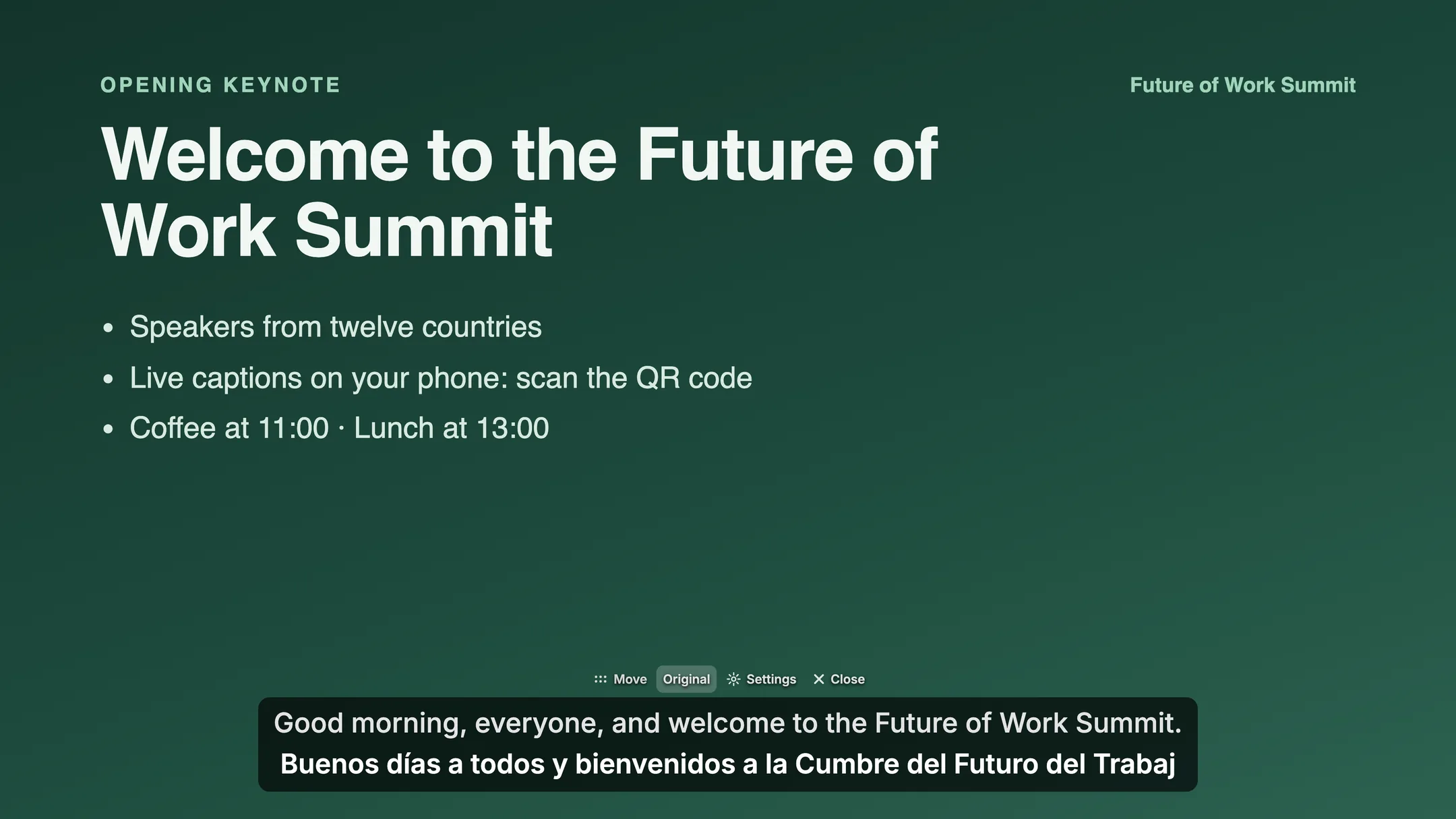
Download the MirrorCaption desktop app, click Float in the control bar and choose the Subtitles style. The captions become a transparent subtitle bar that stays on top of every window, so it sits over your slides on the projector or over the scene you capture in OBS. Under Settings you choose the text size and color, whether the original appears above or below the translation, and whether the bar has a dimmed background.
The Subtitles style needs the MirrorCaption desktop app: Mac 1.0.17 or later, or Windows 1.0.18 or later. Get it from Downloads. For streaming setups see Floating captions in OBS.
Option B — Embed the captions with an iframe, no download needed
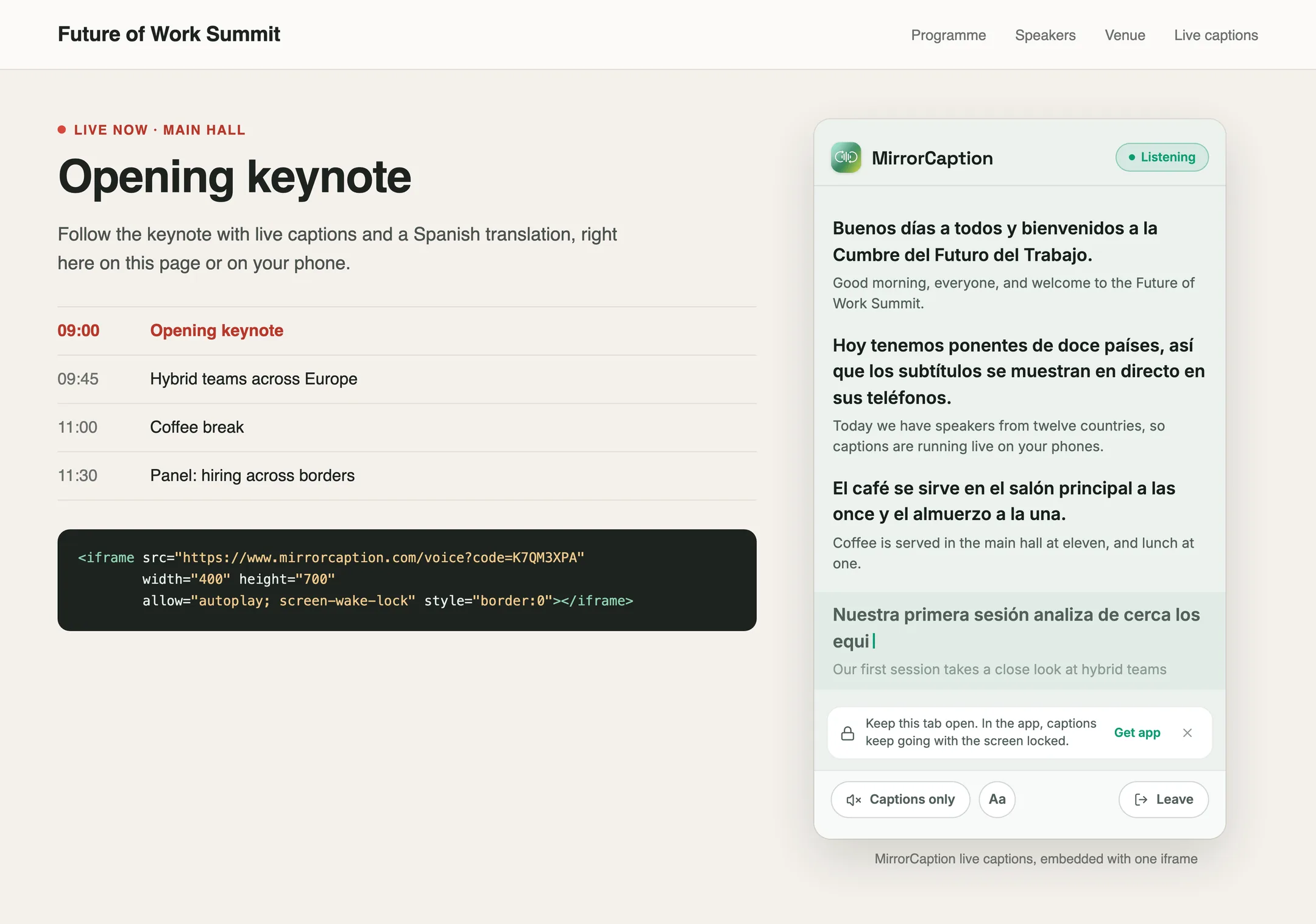
If you don't want to install anything, put the captions straight into your own web page. After you generate the pairing code in step 4, click Embed on a website under the QR code. Choose one of two views and click Copy code:
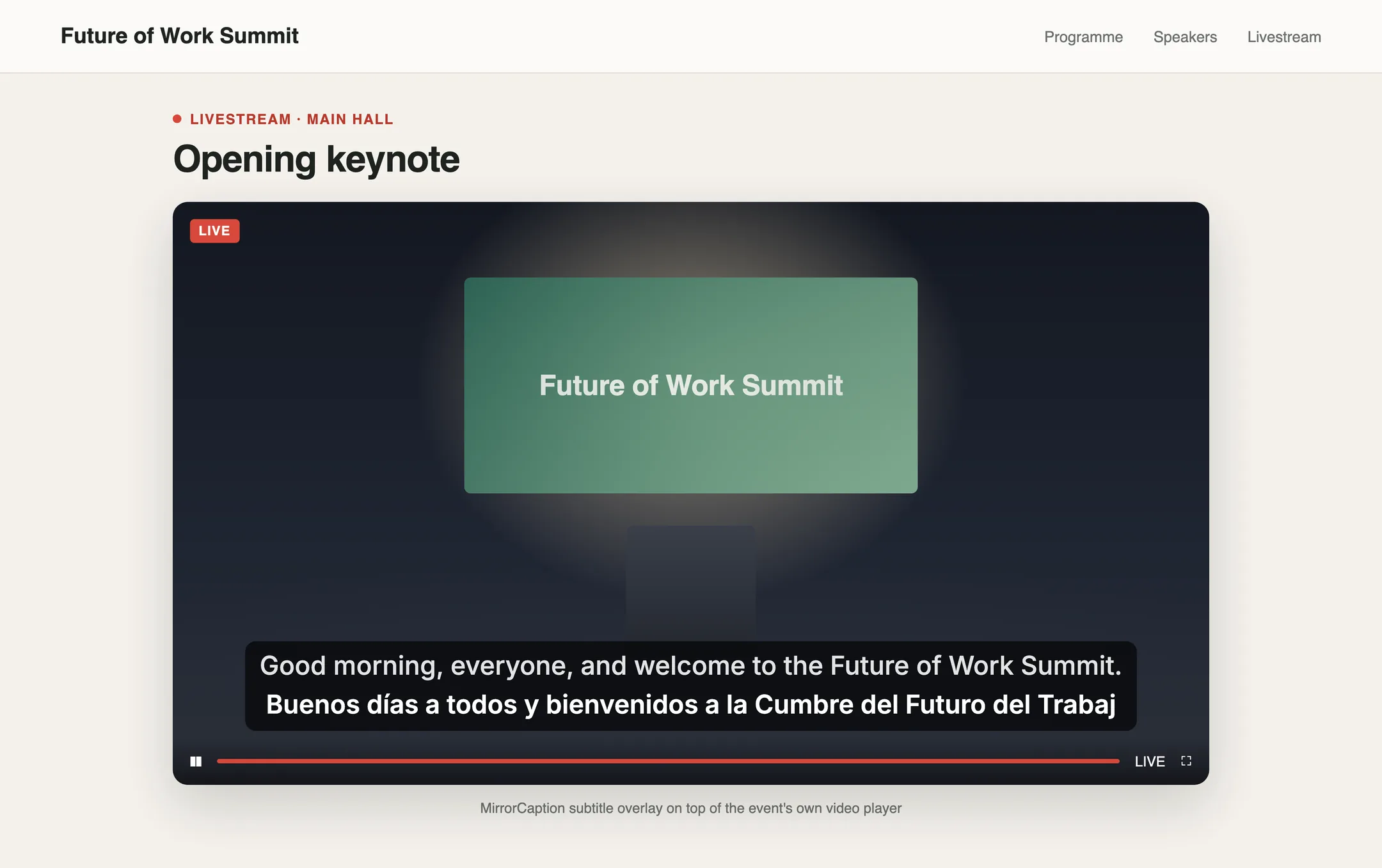
Subtitle overlay: transparent subtitles that lie over your video player. Captions only, no voice.
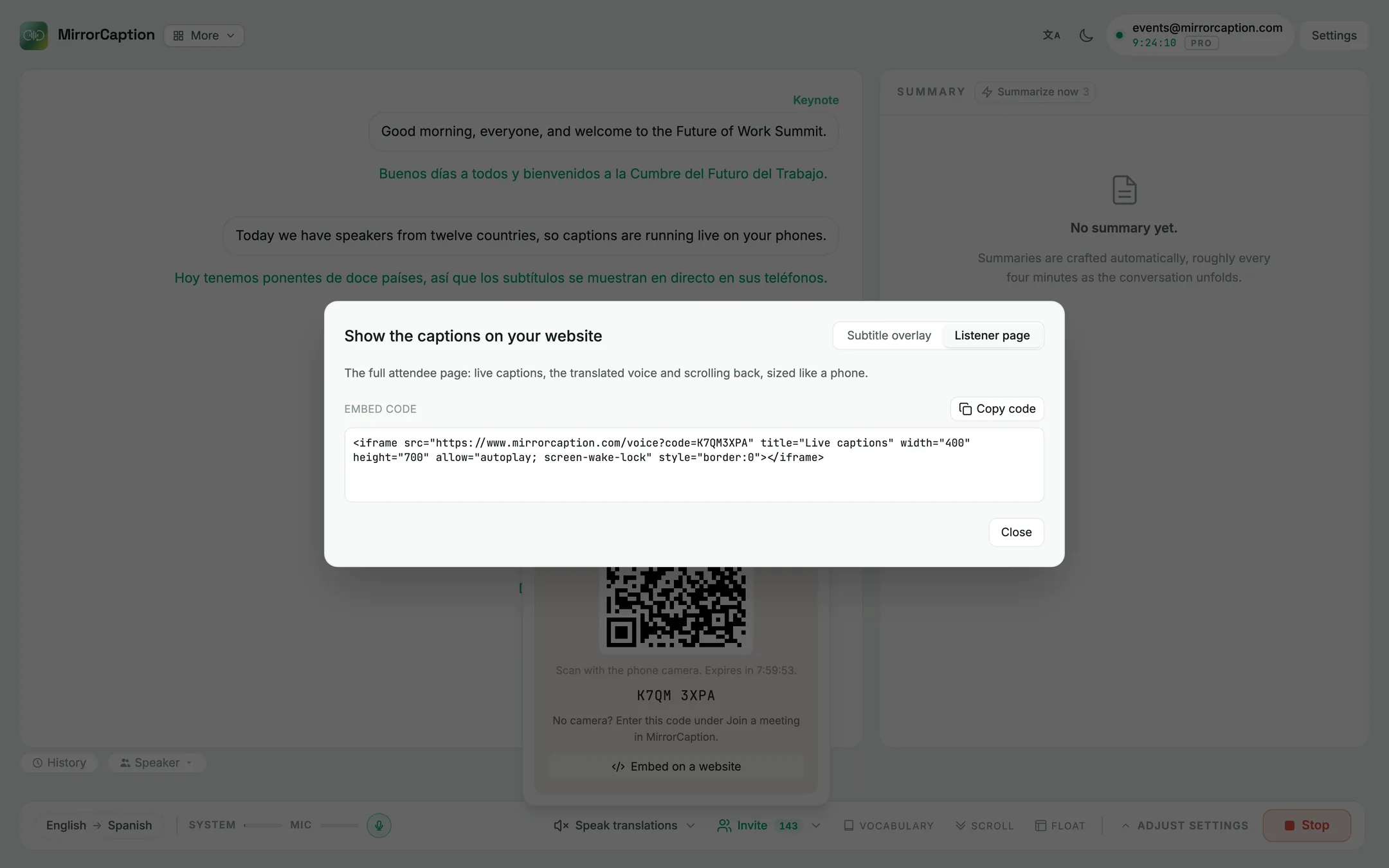
Listener page: the full attendee page with live captions, the translated voice and scrolling back, sized like a phone.
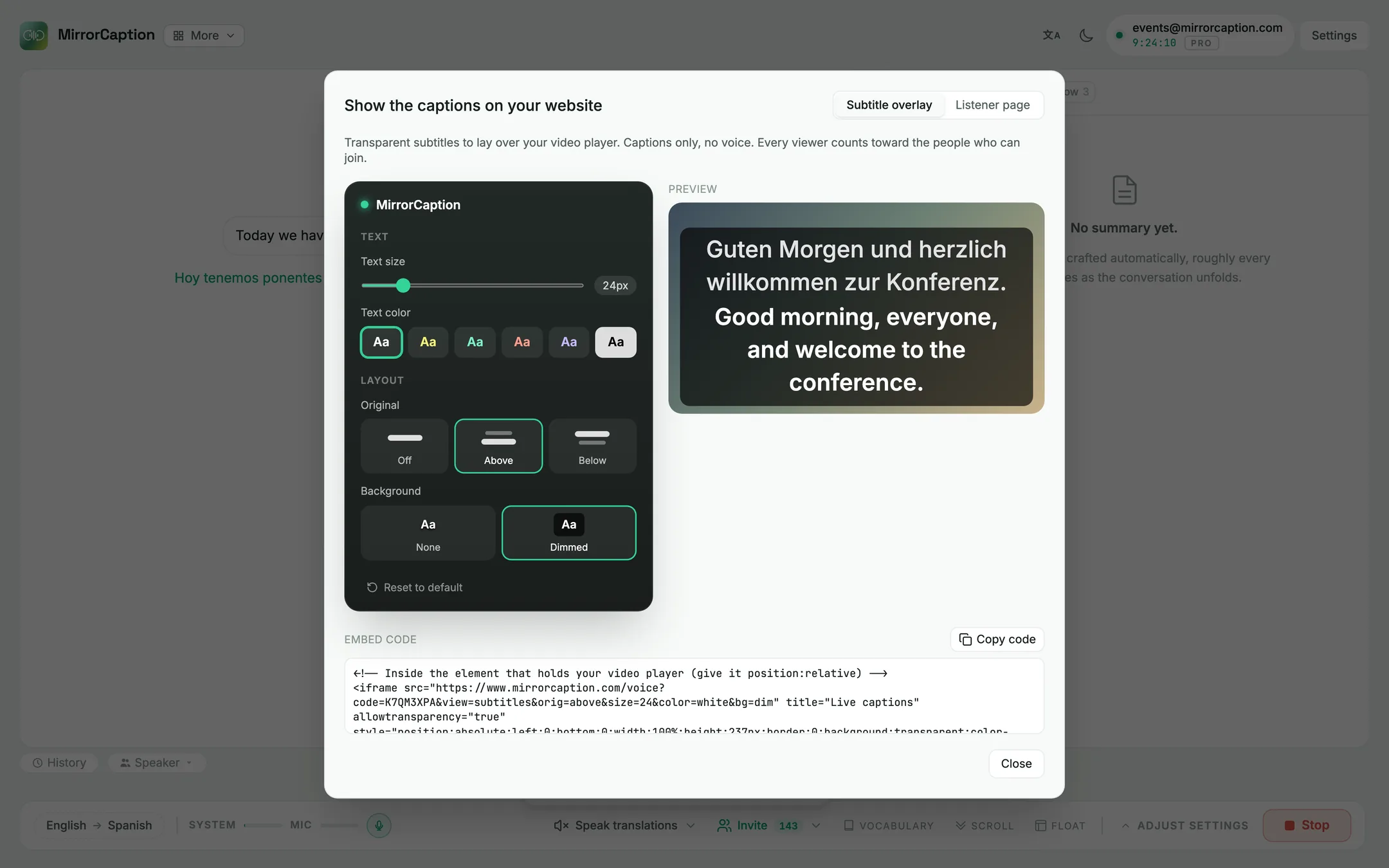
Subtitle overlay
Style the subtitles with the same controls as the desktop app; the preview shows the result. The look is saved in the embed code, so the overlay on your site looks exactly like the preview.
Paste the code inside the element that holds your video player and give that element position: relative:
<div style="position: relative">
  <!-- your video player -->
  <iframe src="https://www.mirrorcaption.com/voice?code=K7QM3XPA&view=subtitles&orig=above&size=24&color=white&bg=dim"
          title="Live captions" allowtransparency="true"
          style="position:absolute;left:0;bottom:0;width:100%;height:237px;border:0;background:transparent;color-scheme:normal;pointer-events:none"></iframe>
</div>
The overlay joins the room by itself and reconnects on its own if the connection drops. Clicks pass through it to your player. Every viewer of the overlay counts toward Phones that can join, so set that number high enough for your online audience too.
Listener page
Embeds the same page attendees see on their phones, for example next to the programme.
allow="autoplay" lets the translated voice play. screen-wake-lock keeps the screen on and is optional.
The listener page is designed for phones: 360–480 px wide works well.
For both views
Embedding needs an event pass. The code in the snippet is the one from step 4. If you generate a new code, copy the embed code again.
If your site sets a Content Security Policy, allow https://www.mirrorcaption.com in frame-src.
Some browsers (Safari) limit pages inside an iframe, so reconnecting after a dropped connection is less reliable there. On phones, the QR code or the direct link is the most robust way to follow along.
Common questions
How many people can join?
Up to 500 phones per room with an event pass. You set the number in the Invite panel.
Do attendees need the MirrorCaption app or an account?
No. The captions open in the phone's browser. The app adds captions with the screen locked and keeps the transcript in the attendee's history (unless you turned on Discourage copying).
Is the audio uploaded?
No. Recording saves the audio only on the computer that runs the session.
Can attendees copy the captions?
Not when Discourage copying is on. Screenshots can't be prevented.
How long is the code valid?
As long as you chose under Code valid for, up to 24 hours.
Do I need the desktop app to show captions on screen?
No. The Subtitles style needs the desktop app, but the subtitle overlay and the listener page work in any browser through an iframe.