A therapist wrote to us recently with a question we hear in many forms. The therapist runs group sessions on Zoom in English, and some of the people in the group don't understand English. The goal was simple: use MirrorCaption so everyone could take part.
The first try didn't go well. MirrorCaption was installed on the therapist's computer and on the clients' side, and in the call everyone heard everything twice: the English and then its translation, the clients' words and then theirs. Each side only wanted to hear the translation. The second try used the virtual microphone: the virtual cable was picked as the microphone in Zoom and the real microphone in MirrorCaption, and the other side heard nothing at all.
The question was: can this work, and how?
It can, and the setup is simpler than either attempt. This guide walks through it step by step. The same setup works for any small group where the host speaks one language and the others speak another: a coaching session, a parents' evening, a team call with a partner office.
Key Takeaways
- Only the host installs anything. Participants scan a QR code and follow on their phone, in the browser. No app or account is needed.
- Two directions at once. The call's audio (system audio) is translated into your language on your screen; your microphone is translated into theirs and spoken on their phones.
- The voice follows the phones. It plays on your laptop until a phone turns its voice on, then moves to the phones and your laptop goes quiet.
- Mute yourself in Zoom if the group should hear only the translation. MirrorCaption still hears your microphone.
The idea in one paragraph
Only the host runs MirrorCaption. The participants install nothing. They scan a QR code with their phone and follow the session there: they can read live captions in their language, listen to the translated voice, or both. On the host's computer, MirrorCaption translates in two directions at once. What the group says in the call comes in as system audio and appears in English on the host's screen. What the host says comes in through the microphone and goes out as speech in the group's language to every phone that joined.
No virtual cable, no second installation, no audio routing in Zoom.
In the example below the therapist speaks English and the clients speak Spanish. Swap in whatever languages your group speaks.
1. Set what the group speaks: Spanish → English
In the control bar, open They speak and set it to Spanish → English. This is the audio from the call. Make sure System Audio is switched on, so MirrorCaption can hear the Zoom call.
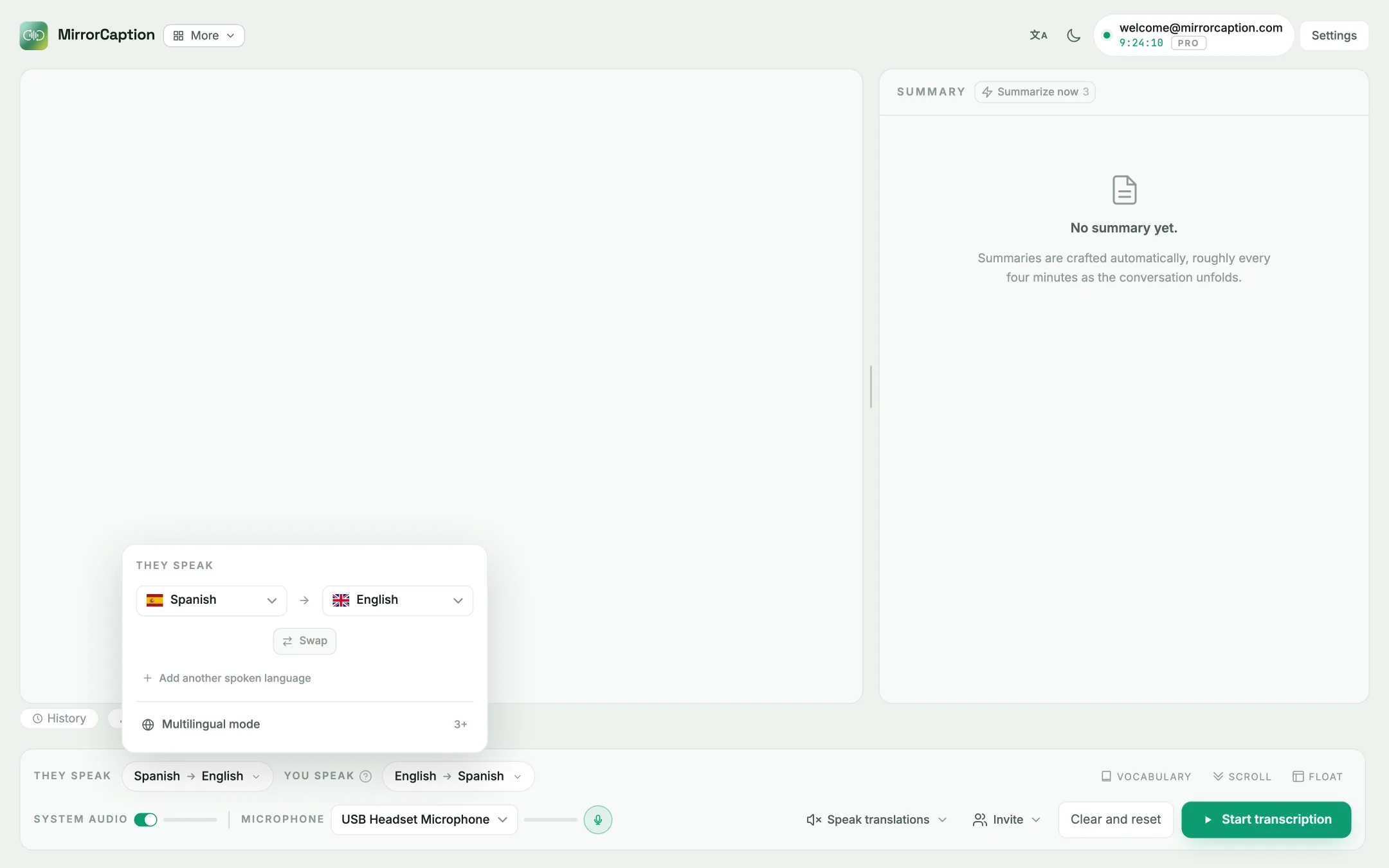
Everything the clients say in Spanish now appears on your screen with an English translation under it.
2. Set what you speak: English → Spanish
Next to it, open You speak and set it to English → Spanish. This is your microphone. Choose the microphone you actually talk into, for example your headset.
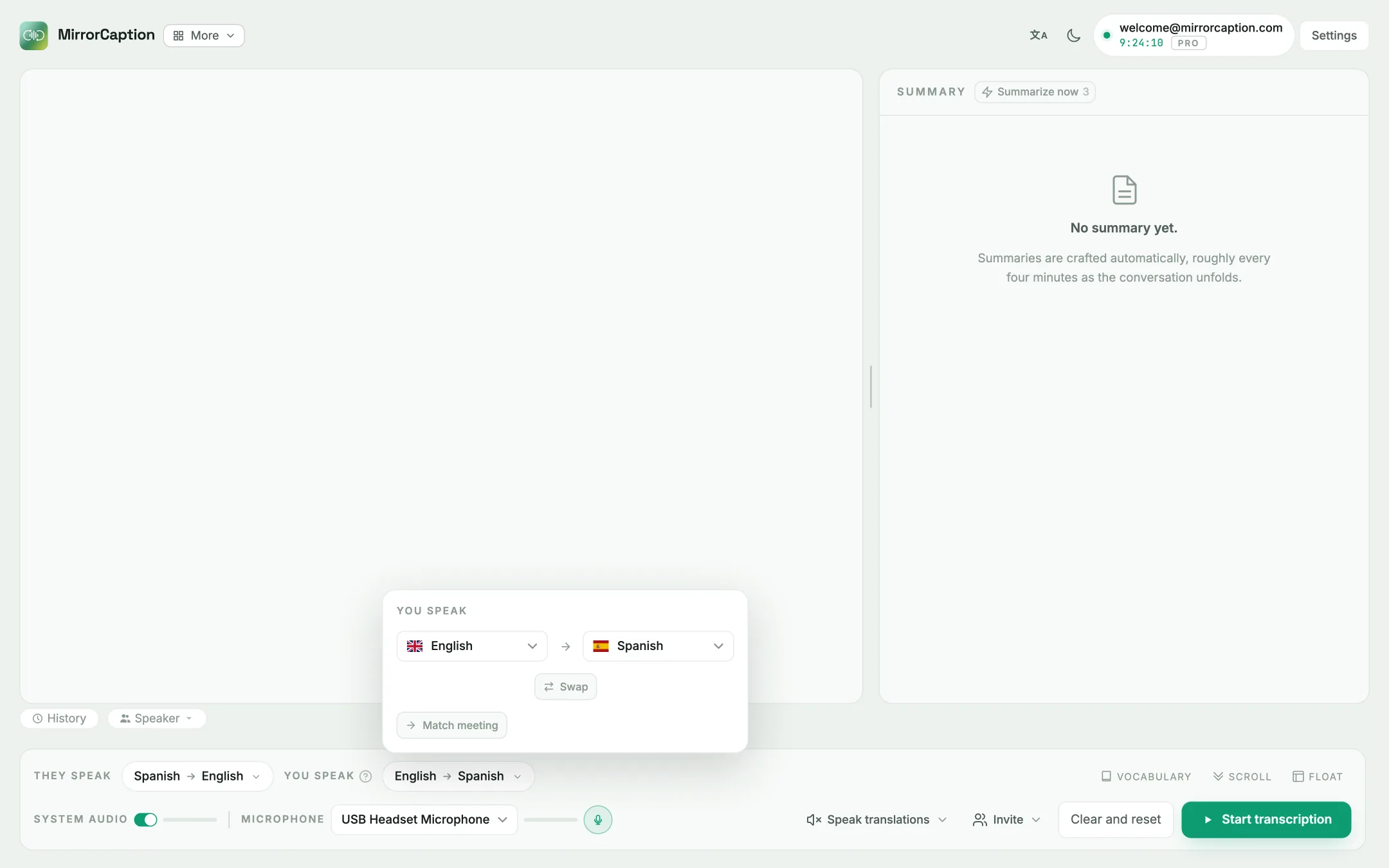
The two directions mirror each other: what they speak is what you hear, and what you speak is what they hear. If everyone in the group shares one language, you set this up once and leave it.
3. Turn on Speak translations
Open Speak translations and switch it on. The panel shows the language it plays in (Spanish) and lets you pick a voice, or even clone your own.
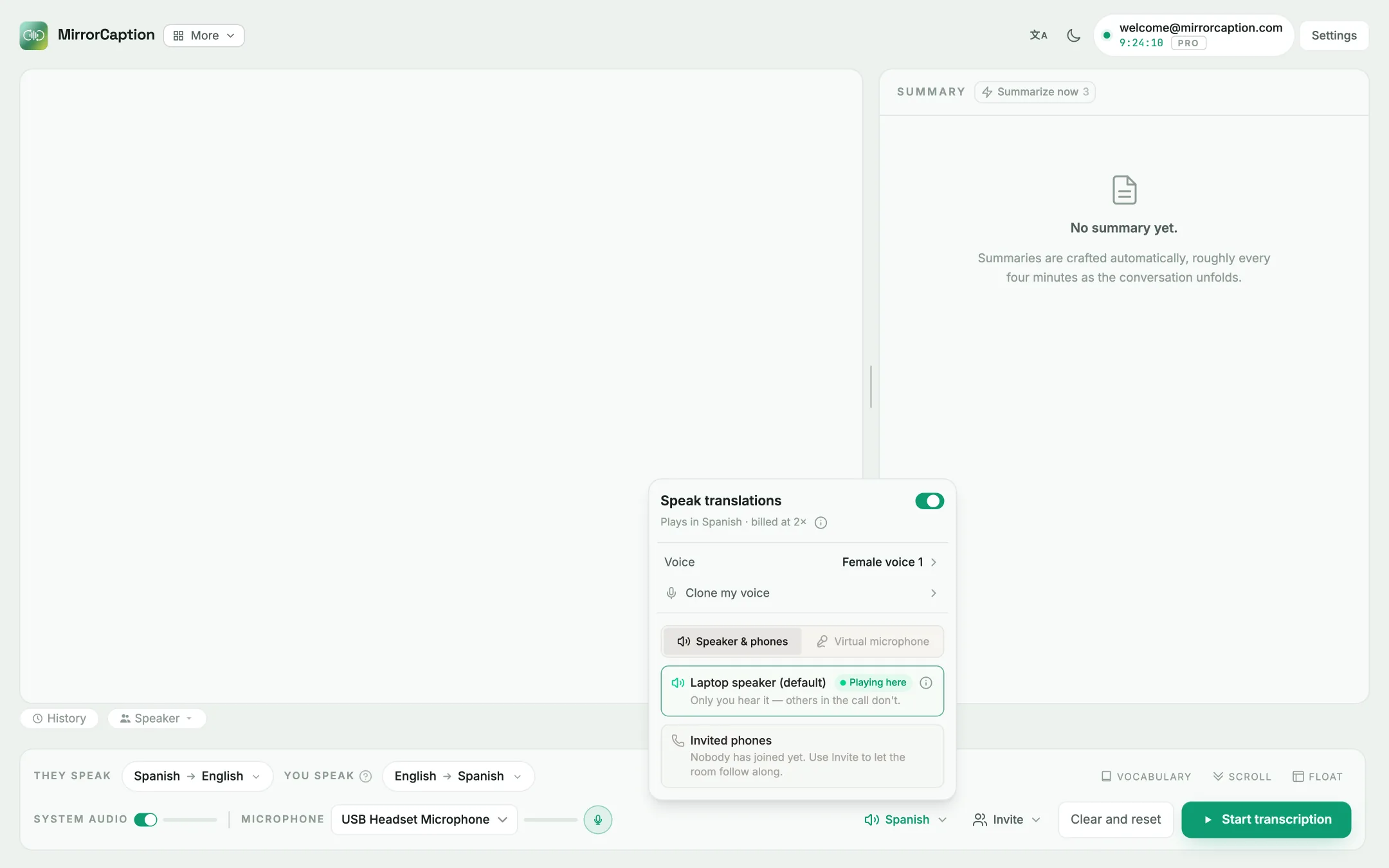
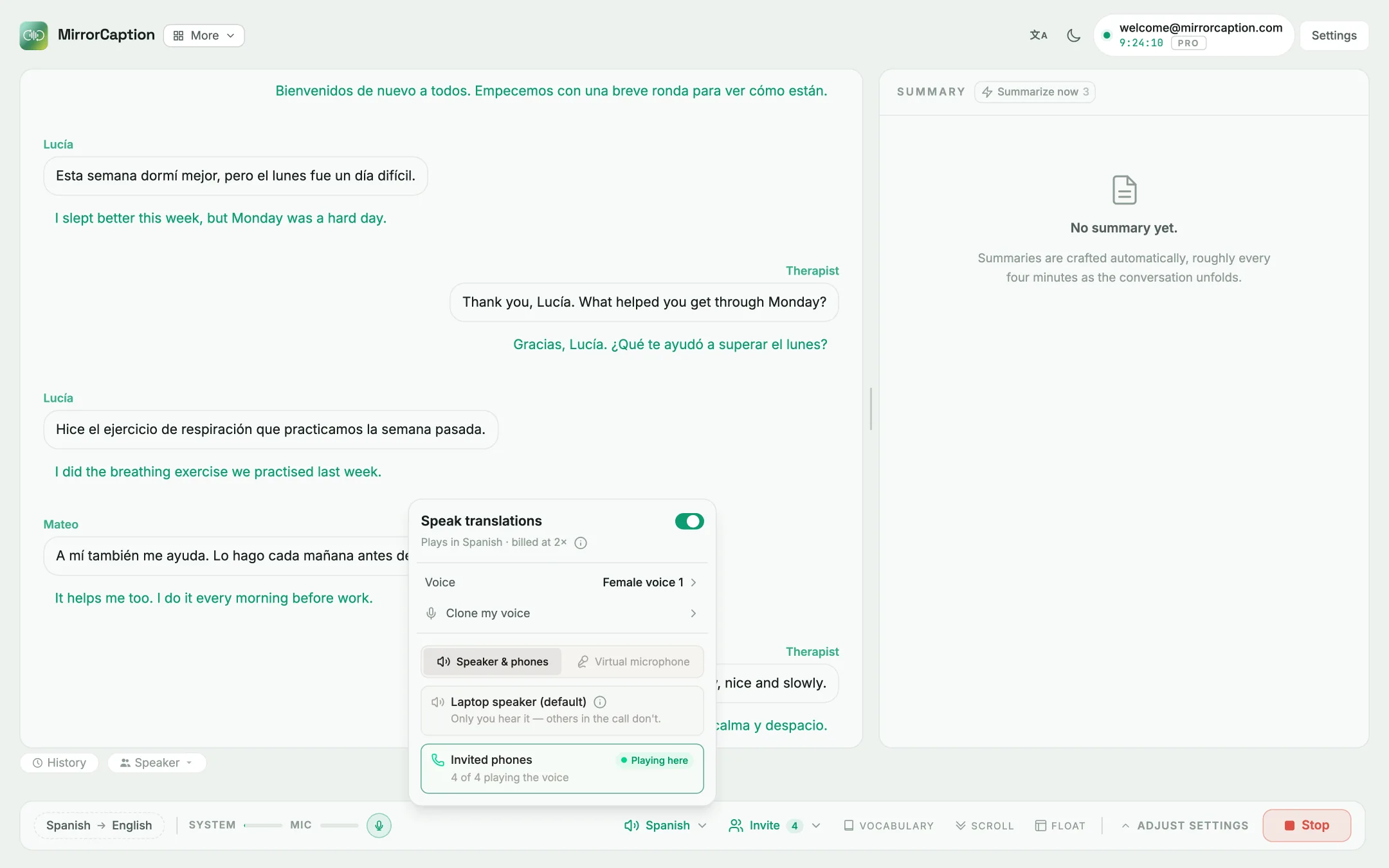
Where does the voice play? Until a phone joins, the translated voice plays from your own computer: the panel marks Laptop speaker (default) as Playing here. That is handy for a quick check, but only you hear it; the clients in Zoom don't. As soon as one invited phone has its voice on (next steps), MirrorCaption moves the voice to the phones automatically and your laptop goes quiet. If every phone leaves, or switches to captions only, the voice comes back to your laptop on its own.
MirrorCaption speaks the translations into the group's language, which in this setup means your English, spoken in Spanish. The clients' Spanish is not voiced back to you; you read it as English captions.
Switch it on before you click Start transcription. The change applies to a new session, so if you flip it while a session is running, MirrorCaption asks whether to restart the session.
4. Invite the group with a QR code
Open Invite, set Phones that can join, and click Generate pairing code. Share the QR code with the group: hold it up to the camera, share your screen for a moment, or send a screenshot in the chat. Anyone who can't scan it can type the code under Join a meeting in MirrorCaption, or open the link in any phone browser.
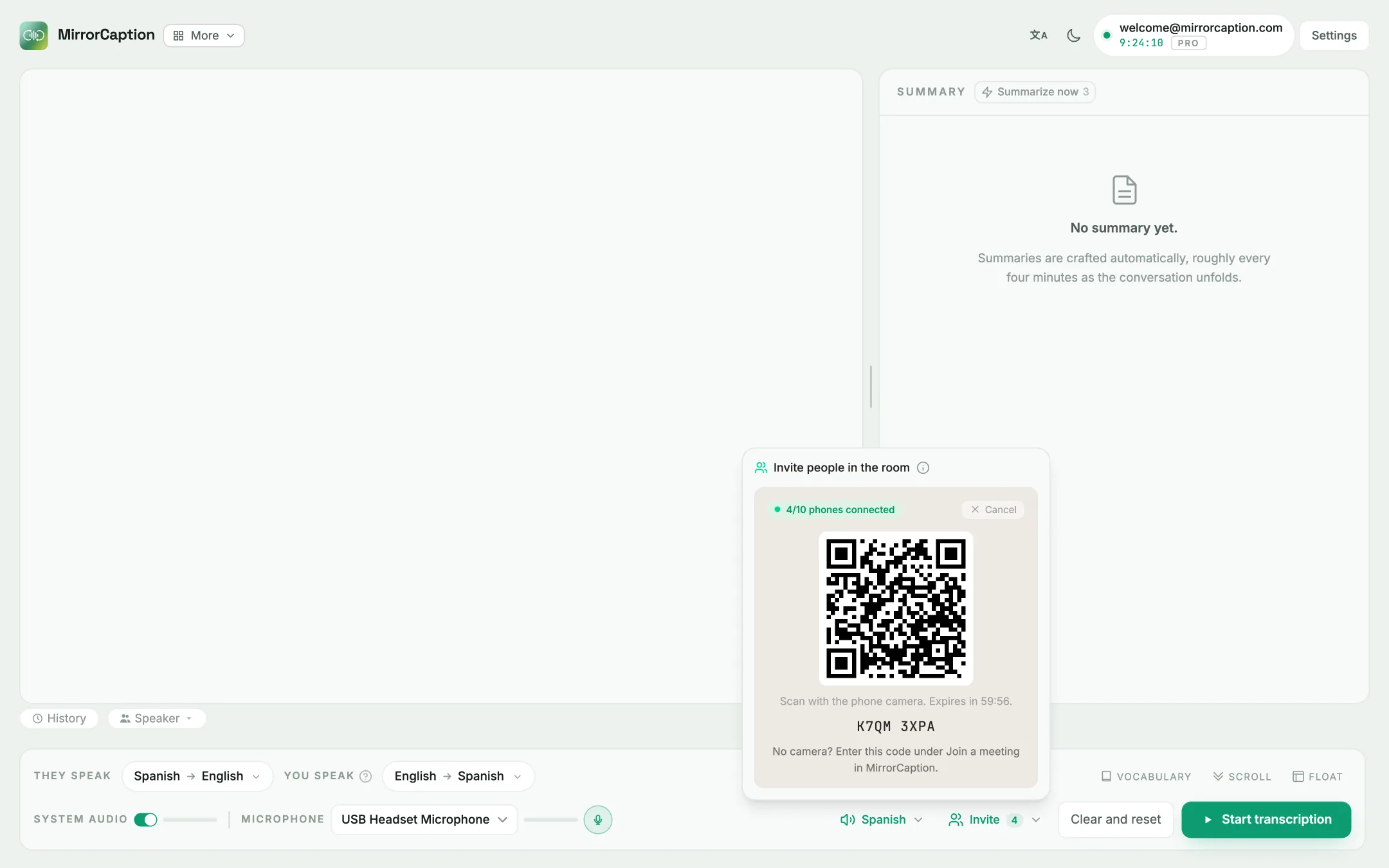
The panel counts the phones as they join. Here four clients are connected.
5. The clients listen on their phones
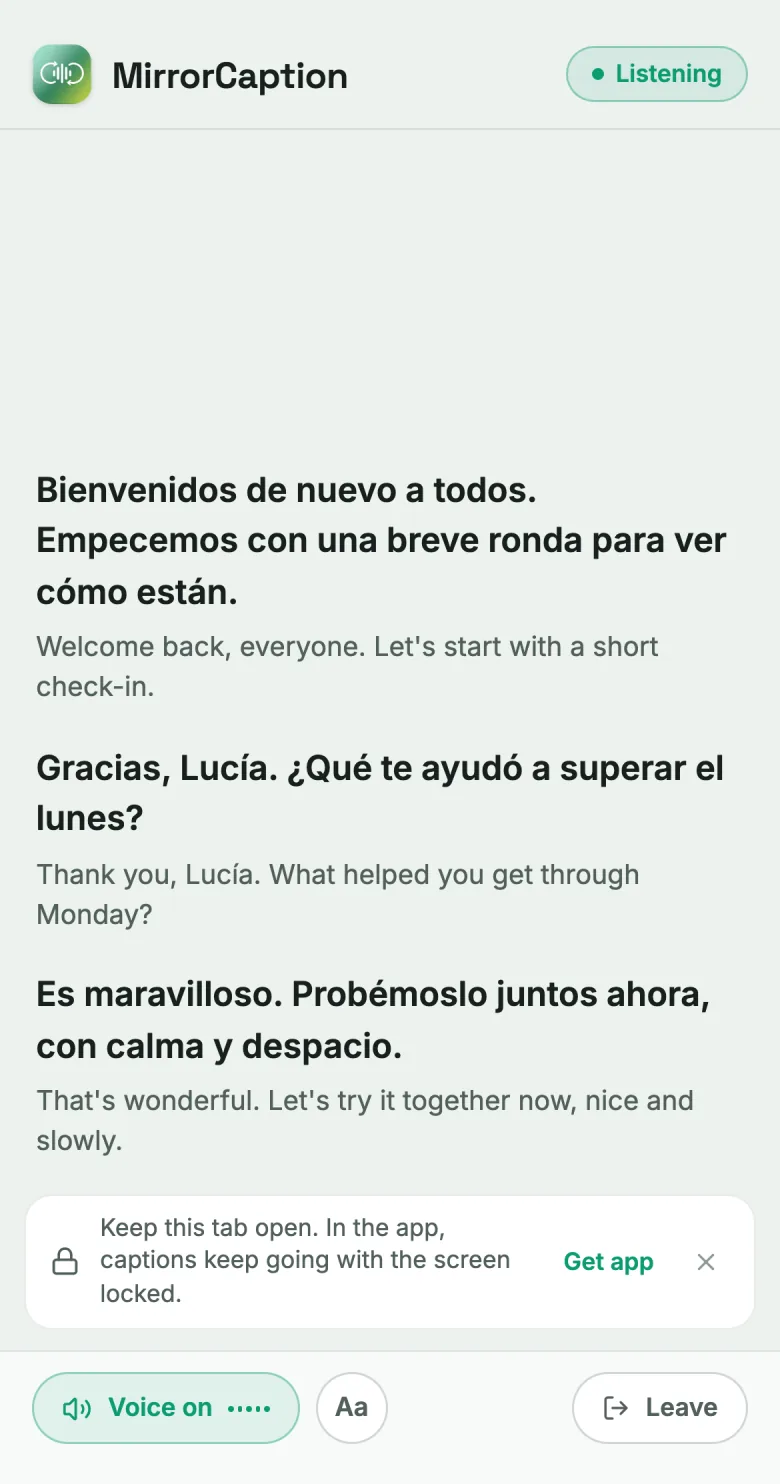
On the phone, each client keeps Captions + voice selected and taps Start listening. No account is needed. Your words appear in large Spanish text with your English underneath, and the translated voice plays from the phone. The Voice on button at the bottom switches a phone to captions only and back.
Back on your computer, open Speak translations to confirm the switch: Playing here has moved from Laptop speaker to Invited phones, with 4 of 4 playing the voice. Your laptop no longer plays the voice, so you don't hear yourself in Spanish.
6. Run the session
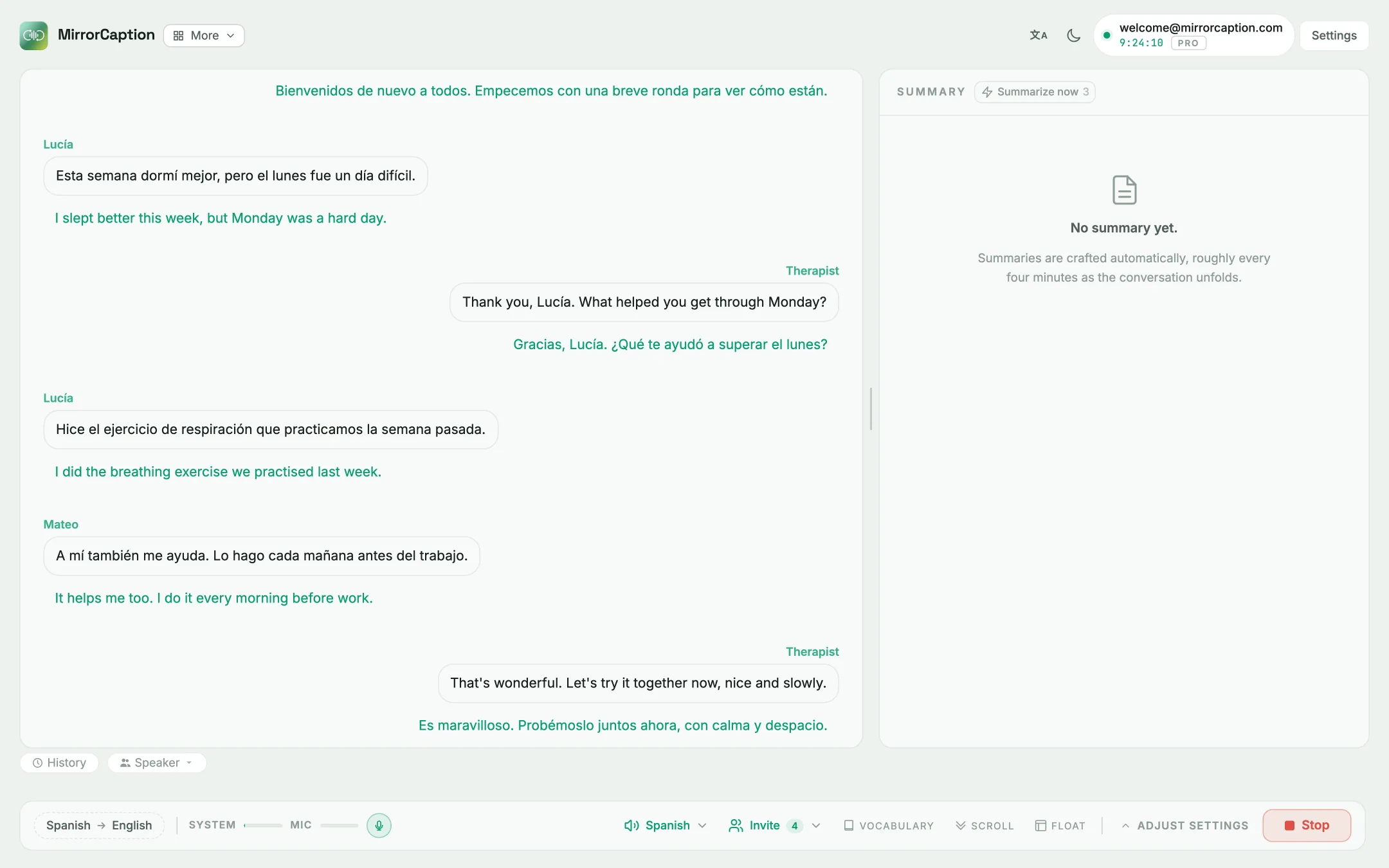
Click Start transcription and talk as you normally would. The clients' Spanish appears on the left with English under it; your English appears on the right with the Spanish your clients are hearing.
7. Don't want them to hear your English? Mute yourself in Zoom
This answers the original question. If the clients should hear only Spanish, mute your microphone in Zoom. MirrorCaption listens to your microphone directly, not through Zoom, so your translated voice keeps reaching their phones. They hear Spanish only, and you still hear them in the call.
Running a one-to-one call instead? Our guide to translating a Zoom meeting in real time covers the captions side on its own, without phones.
Tips before the first real session
- Test with one phone first. Join with your own phone, say a few sentences and check that the Spanish voice plays. It takes a minute and avoids surprises in front of the group.
- Earphones on the phones help. If a client plays the voice through the phone's loudspeaker while their Zoom microphone is on, the Spanish can leak back into the call. Earphones, or staying muted in Zoom while listening, keep the call clean.
- Keep the phone tab open. The listener page runs in the phone's browser. In the MirrorCaption app, captions keep going even with the screen locked.
- Speaking translations costs more compute, so usage is billed at a higher rate while it is on. The panel shows the current rate before you start.
Why the first attempt didn't work
Installing MirrorCaption on both sides meant two copies translating the same call. Each side heard the original from Zoom plus the translation from its own MirrorCaption, so everything came twice. The virtual microphone route can work, but it replaces your voice in Zoom with MirrorCaption's output, so the whole chain has to be set up exactly right or the other side hears nothing. For a group where everyone has a phone, the QR invite is simpler: one installation, no audio routing, and each person chooses captions, voice or both.
Frequently asked questions
Do the participants need to install MirrorCaption?
No. Only the host runs MirrorCaption. Participants scan a QR code or enter a short code and follow in their phone's browser, with no account. The MirrorCaption app is optional; it keeps captions going with the screen locked.
Will the translated voice play on my laptop and the phones at the same time?
No. The voice plays on your laptop only while no invited phone has its voice on. As soon as one does, your laptop goes quiet and the phones play it. If they all leave or switch to captions only, it returns to your laptop.
Can I turn Speak translations on in the middle of a session?
The change takes effect in a new session. If you switch it while a session is running, MirrorCaption offers to restart the session for you, so it is easiest to switch it on before you click Start transcription.
Do I have to mute myself in Zoom?
Only if the group should hear the translation and not your original voice. MirrorCaption captures your microphone directly, so muting in Zoom doesn't stop the translation from reaching their phones.
One install, every language in the call
Have a setup like this you'd like to try? Questions are welcome at info@mirrorcaption.com, and we're happy to help you test before your session.
Get Started Free