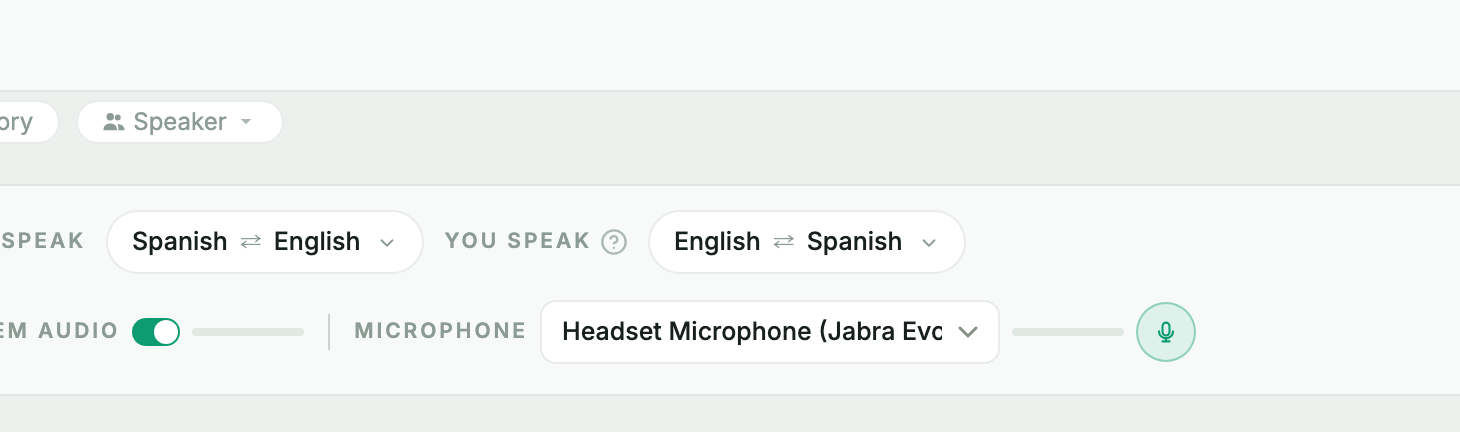
Step 1 — Keep your real microphone in MirrorCaption
In the control bar, open the Microphone dropdown and pick the microphone you actually talk into. The level bar moves while you speak. This stays the same for every call.
Speak your own language and let everyone in Zoom, Teams or Google Meet hear the translation. You set it up once, and it takes about two minutes.
MirrorCaption listens to you through your real microphone, translates what you say and speaks the translation into a virtual microphone called CABLE Output. Your meeting listens to that virtual microphone, so the other side hears the translation instead of your own voice.
| Where | Microphone to pick |
|---|---|
| Inside MirrorCaption | Your real microphone — the headset or laptop microphone you talk into |
| In the meeting | CABLE Output — the virtual microphone |
In the control bar, open the Microphone dropdown and pick the microphone you actually talk into. The level bar moves while you speak. This stays the same for every call.
Before you start the session, click Speak translations in the control bar and turn it on. In the panel that opens, switch to the Virtual microphone tab.
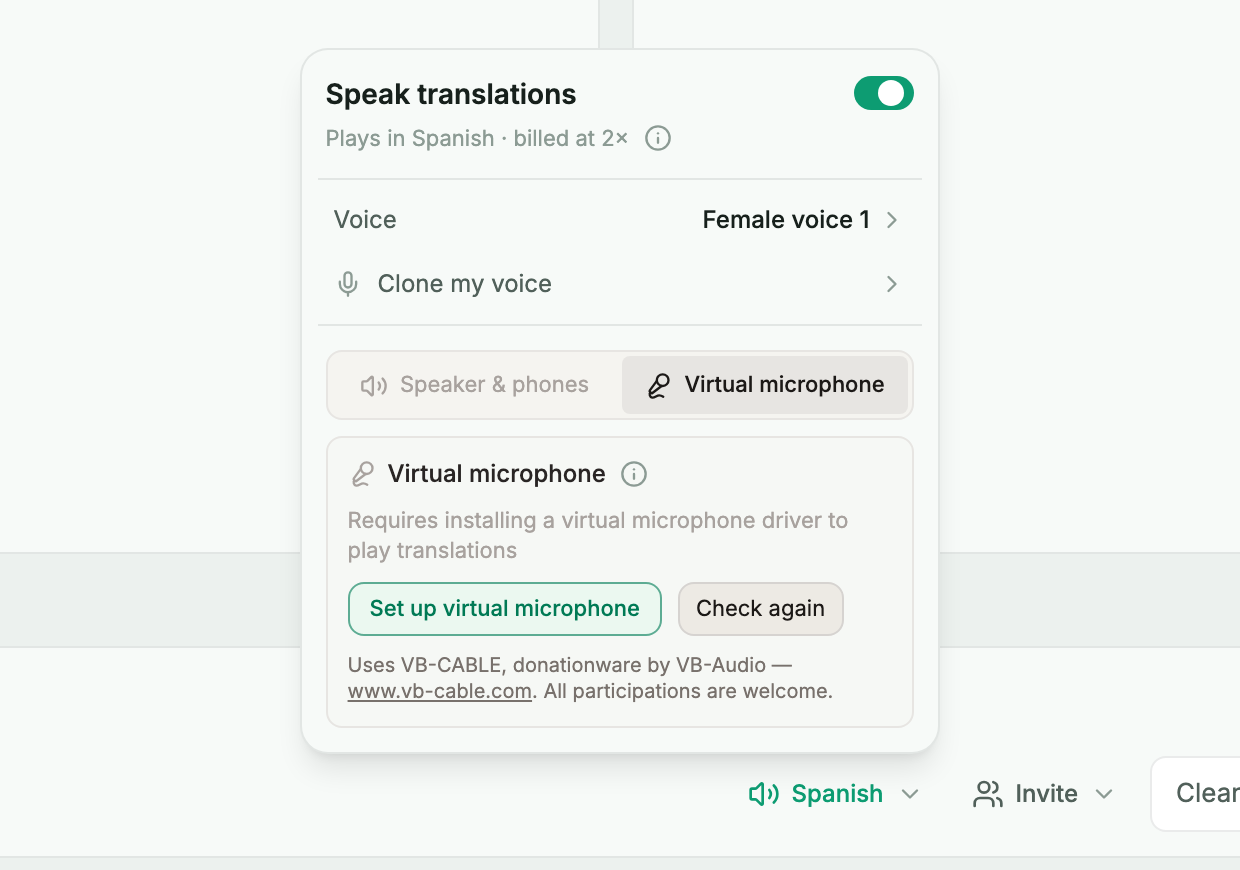
Click Set up virtual microphone and allow the installation when Windows asks. MirrorCaption installs the VB-CABLE audio driver for you. When it is done the card turns green and reads Active. You only do this once per computer.
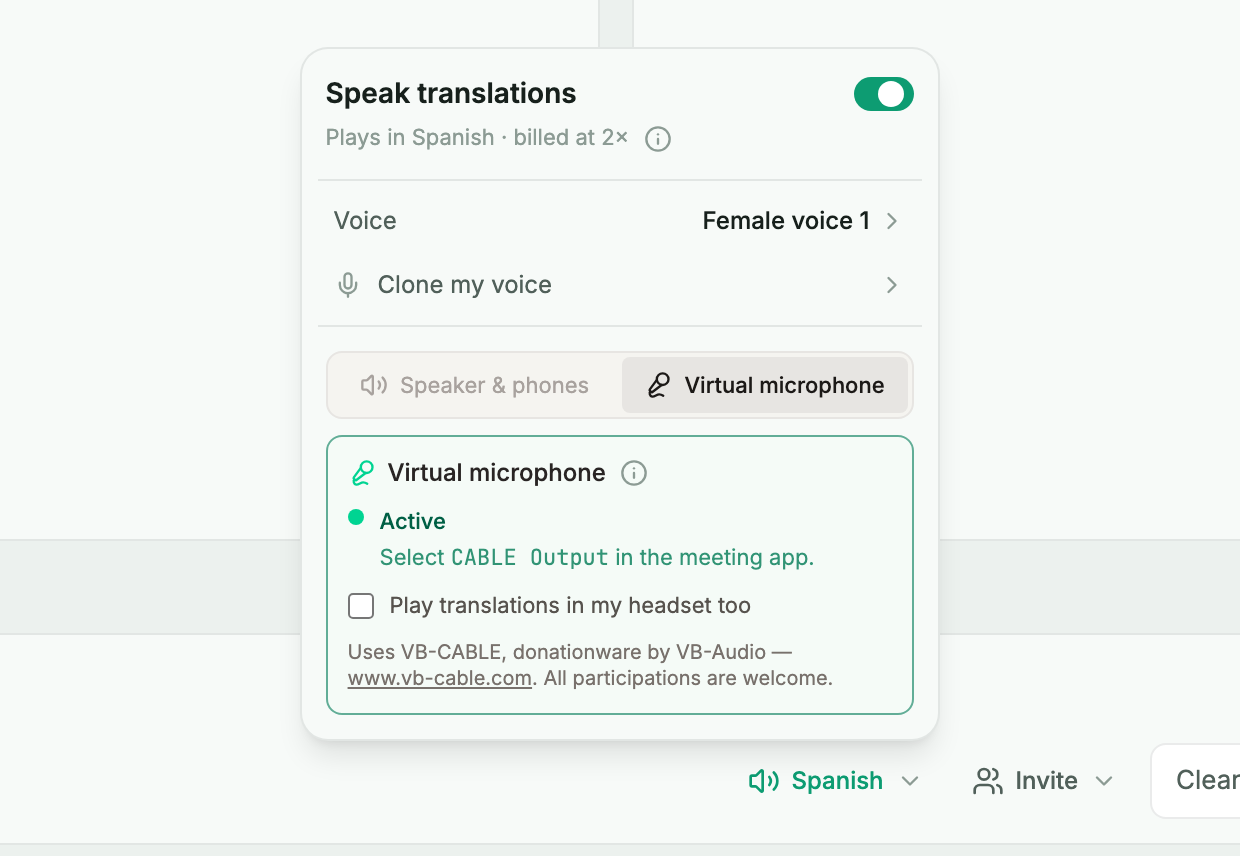
Join the call and open its microphone menu. In Zoom and Teams it is the small arrow next to the microphone button; in Google Meet it is under Settings, then Audio. Choose CABLE Output (VB-Audio Virtual Cable). Leave the speaker setting as it is.
Press Start in MirrorCaption and talk normally. After each sentence the meeting hears it in the other language. Your own speakers stay silent; tick Play translations in my headset too if you want to hear what is being said for you.
When the meeting is over, check where your computer plays sound. Click the speaker icon in the Windows taskbar and look at the output device: if it reads CABLE Input (VB-Audio Virtual Cable), music, videos and your next call will be silent, because the sound is going into the virtual cable instead of your ears. Pick your speakers or headset again.