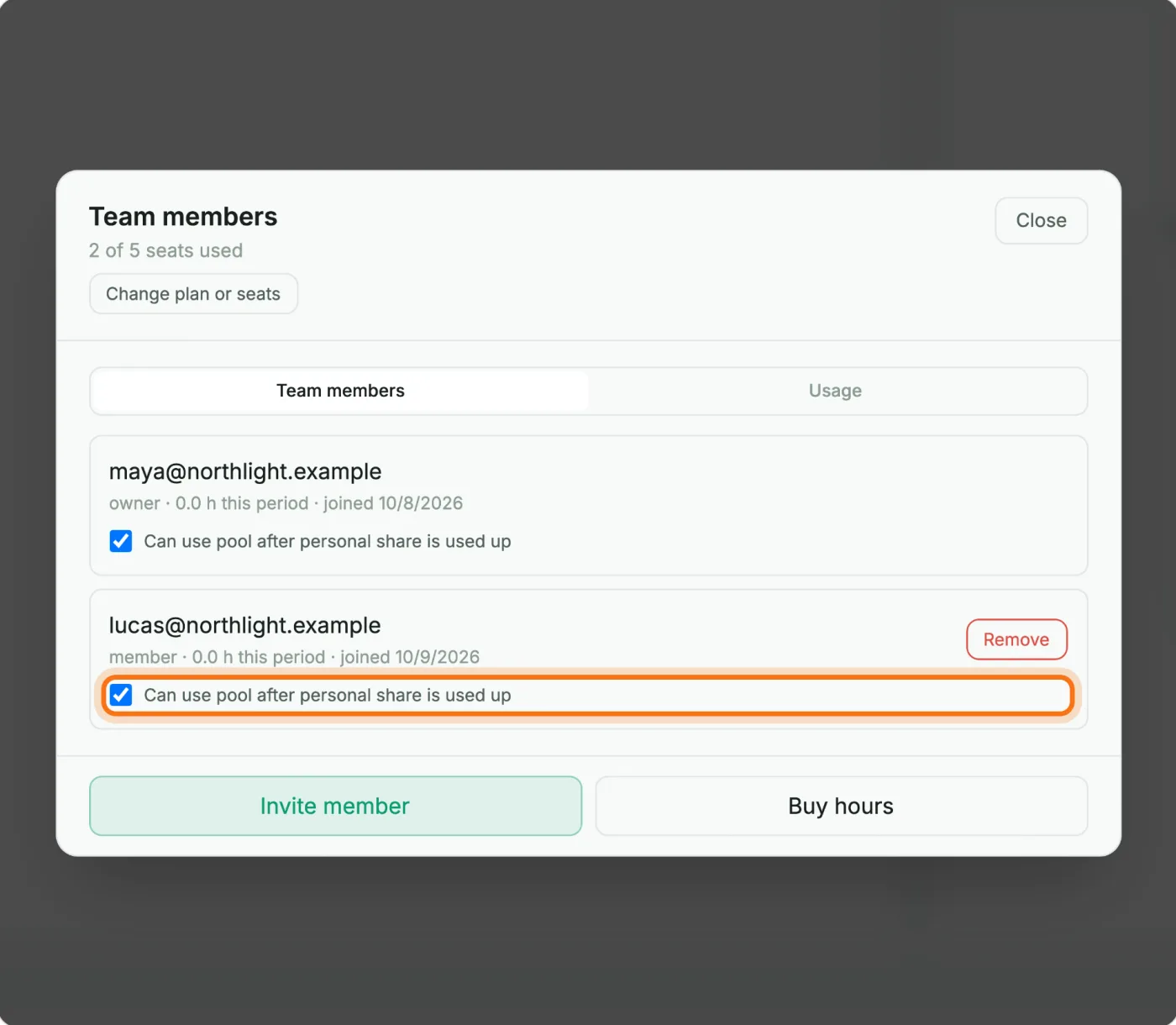
Step 1 — Open MirrorCaption and click Sign In
Go to mirrorcaption.com/app in your browser. The account button is in the top-right corner and reads "Sign In" until you are signed in.
Create an account, start a Team plan, and invite your colleagues. It takes about five minutes, and you only do it once.
Go to mirrorcaption.com/app in your browser. The account button is in the top-right corner and reads "Sign In" until you are signed in.
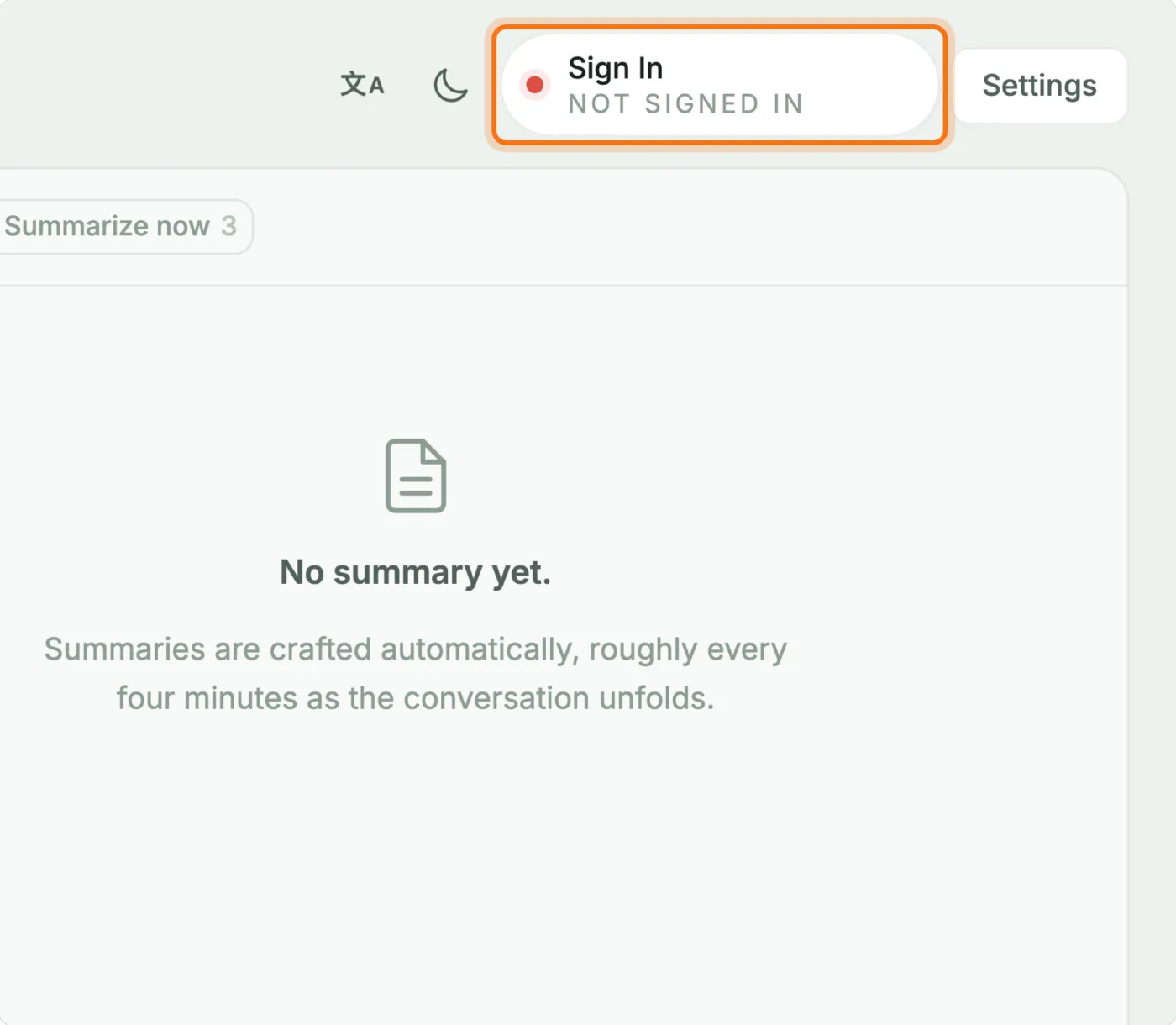
Switch to "Sign Up", enter your work email and a password, and tick both boxes: one accepts the Terms of Service and Privacy Policy, the other confirms you are at least 16. Then click "Create Account". "Continue with Google" and "Continue with Apple" also work and skip the form.
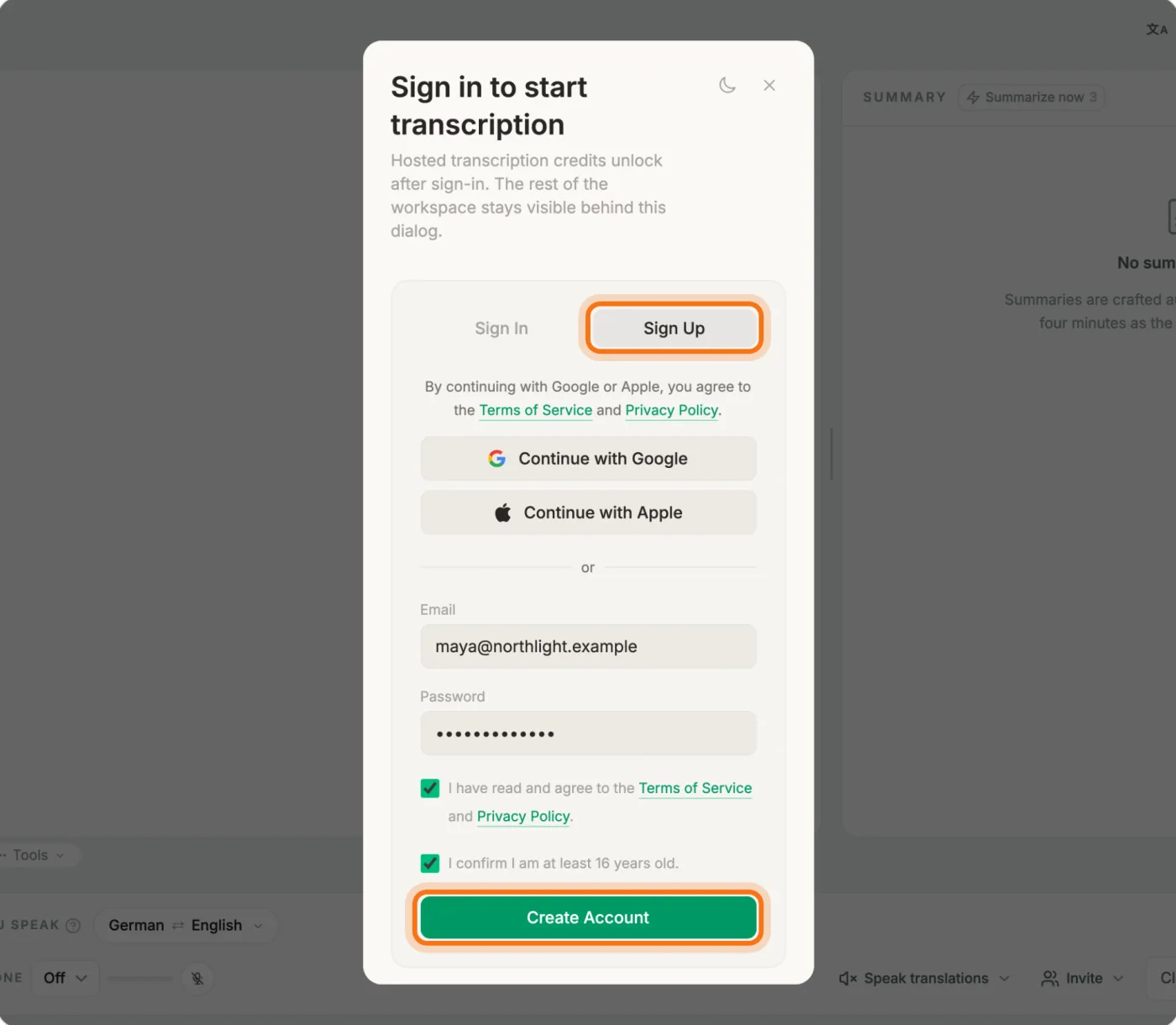
If you are asked to confirm your email, open the message we sent (check spam or junk if it is missing) and click the link. Then come back and sign in with the same address.
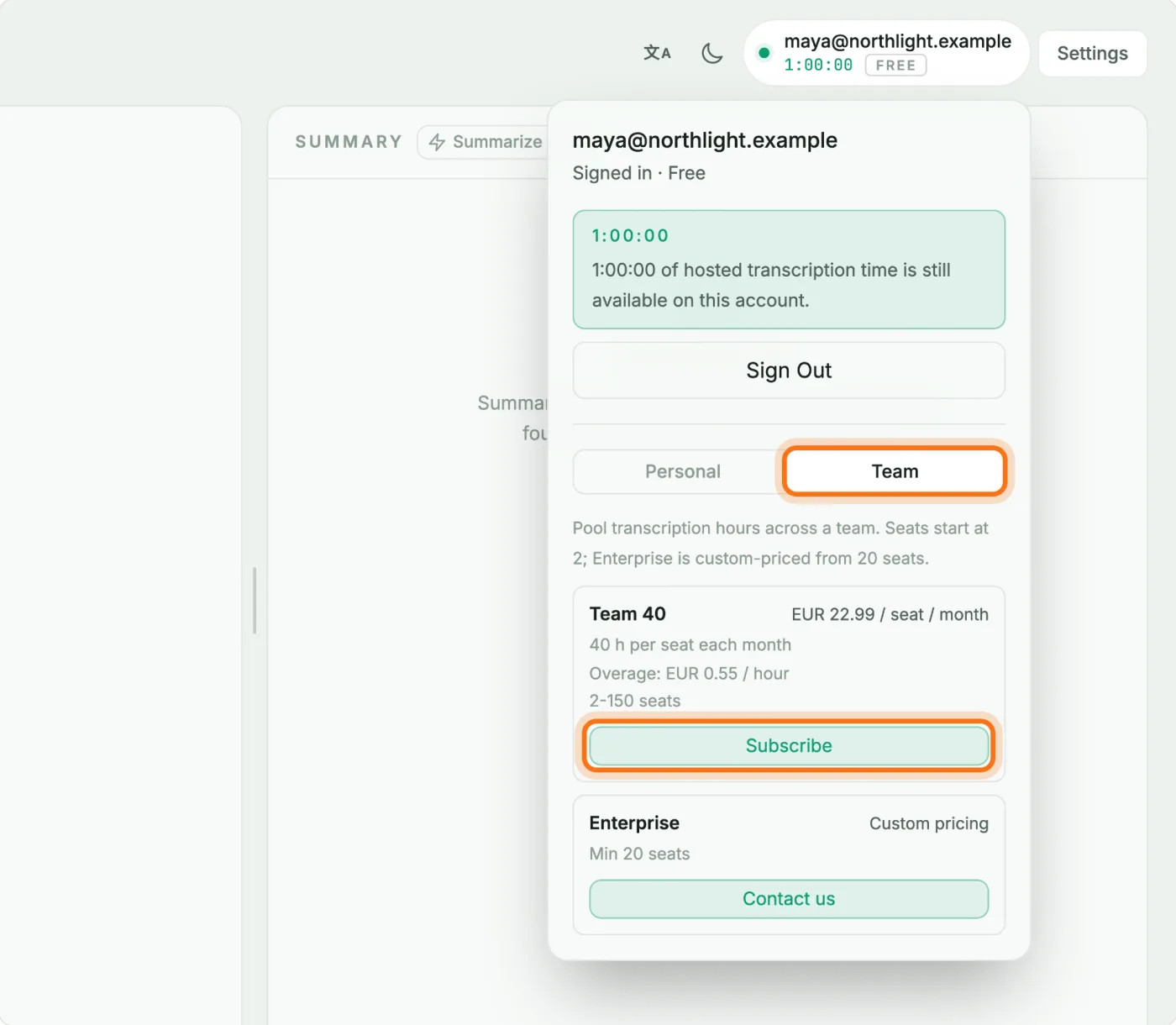
Click your account button and switch from "Personal" to "Team". Under Team 40, click "Subscribe". Team 40 gives every seat 40 hours for each month of the billing period, and the whole team shares those hours as one pool.
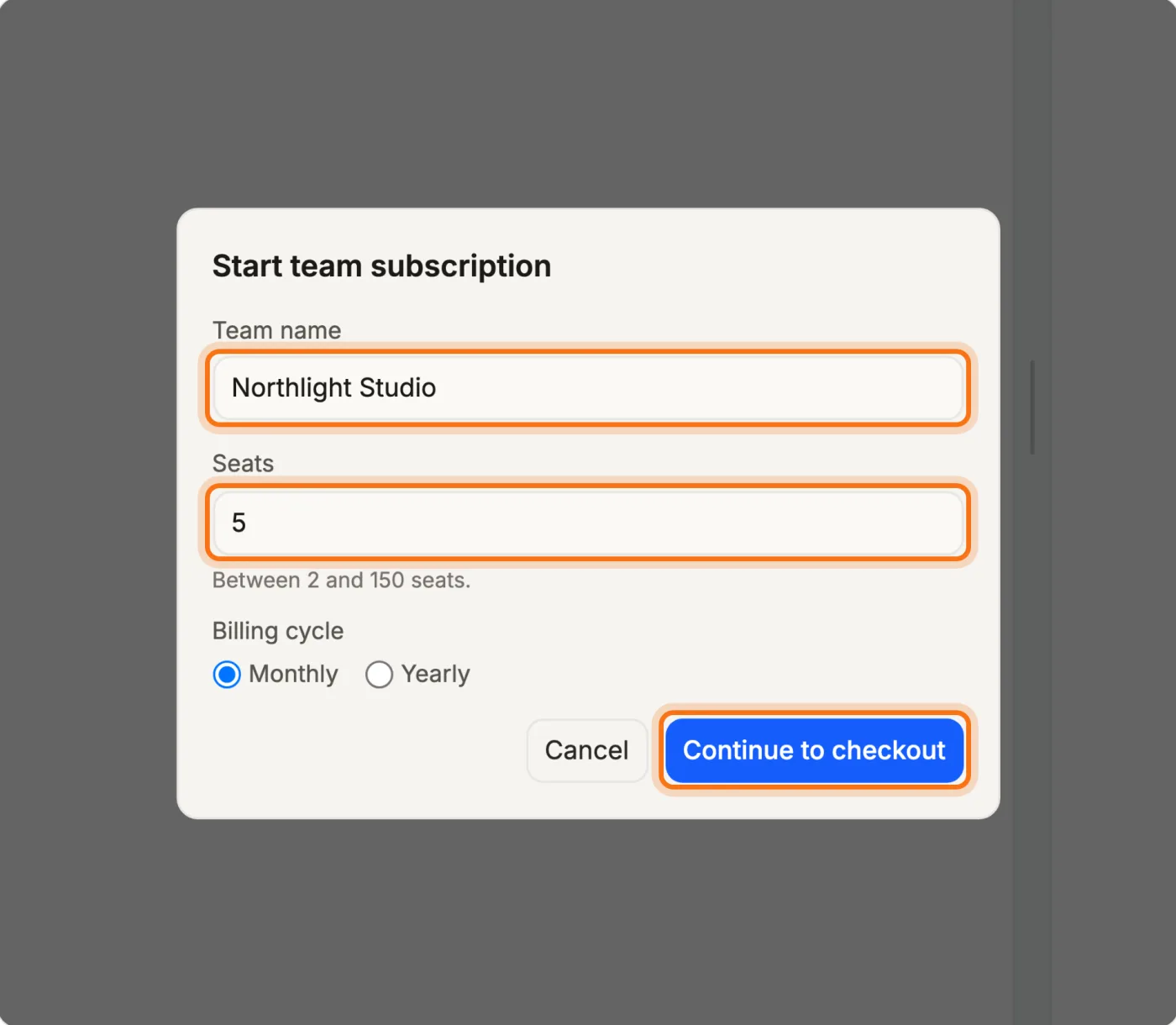
Type the team name, set the number of seats (2 to 150), and choose "Monthly" or "Yearly" billing. Then click "Continue to checkout". With yearly billing, the hours for the whole year are added to the pool on day one.
You are taken to a secure payment page hosted by Stripe, showing Team 40 and the number of seats you chose. When the payment goes through, you return to MirrorCaption. Your team now exists and you are its owner.
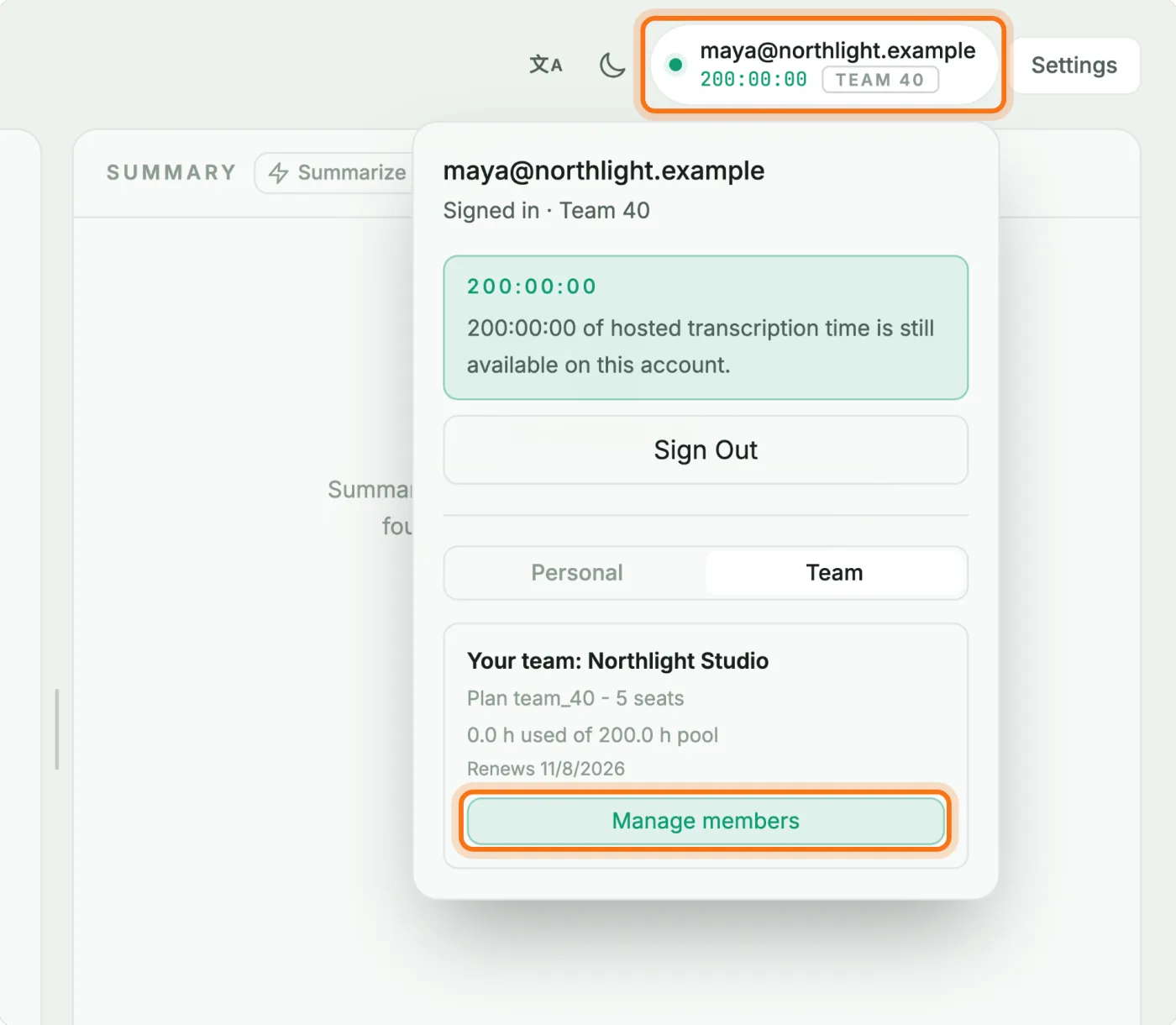
Your account button now shows Team 40 and the team's pooled hours. Open it and click "Manage members". Only the owner and team admins see this button.
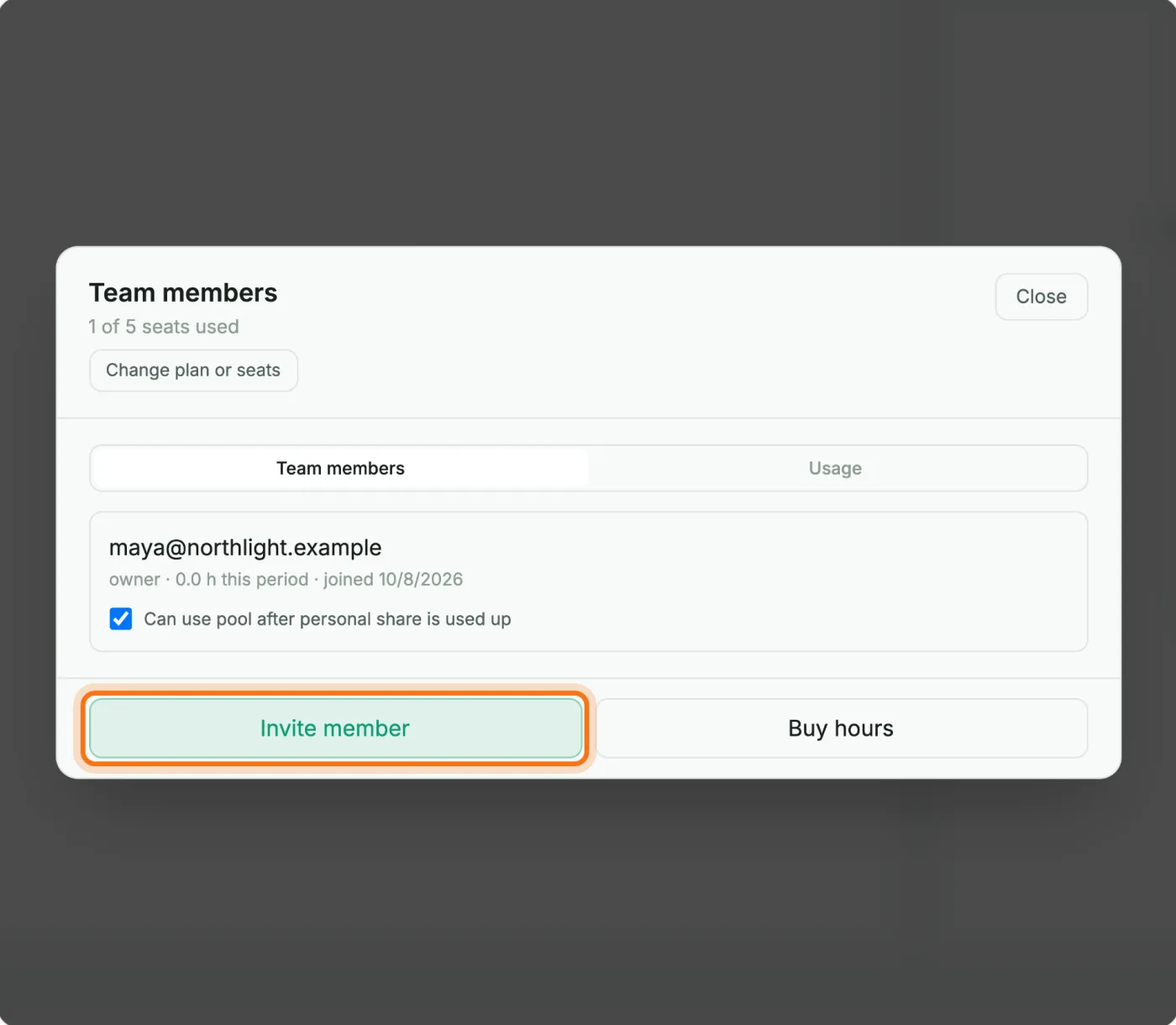
You are the first member. The line at the top shows how many seats are taken. Click "Invite member" at the bottom.
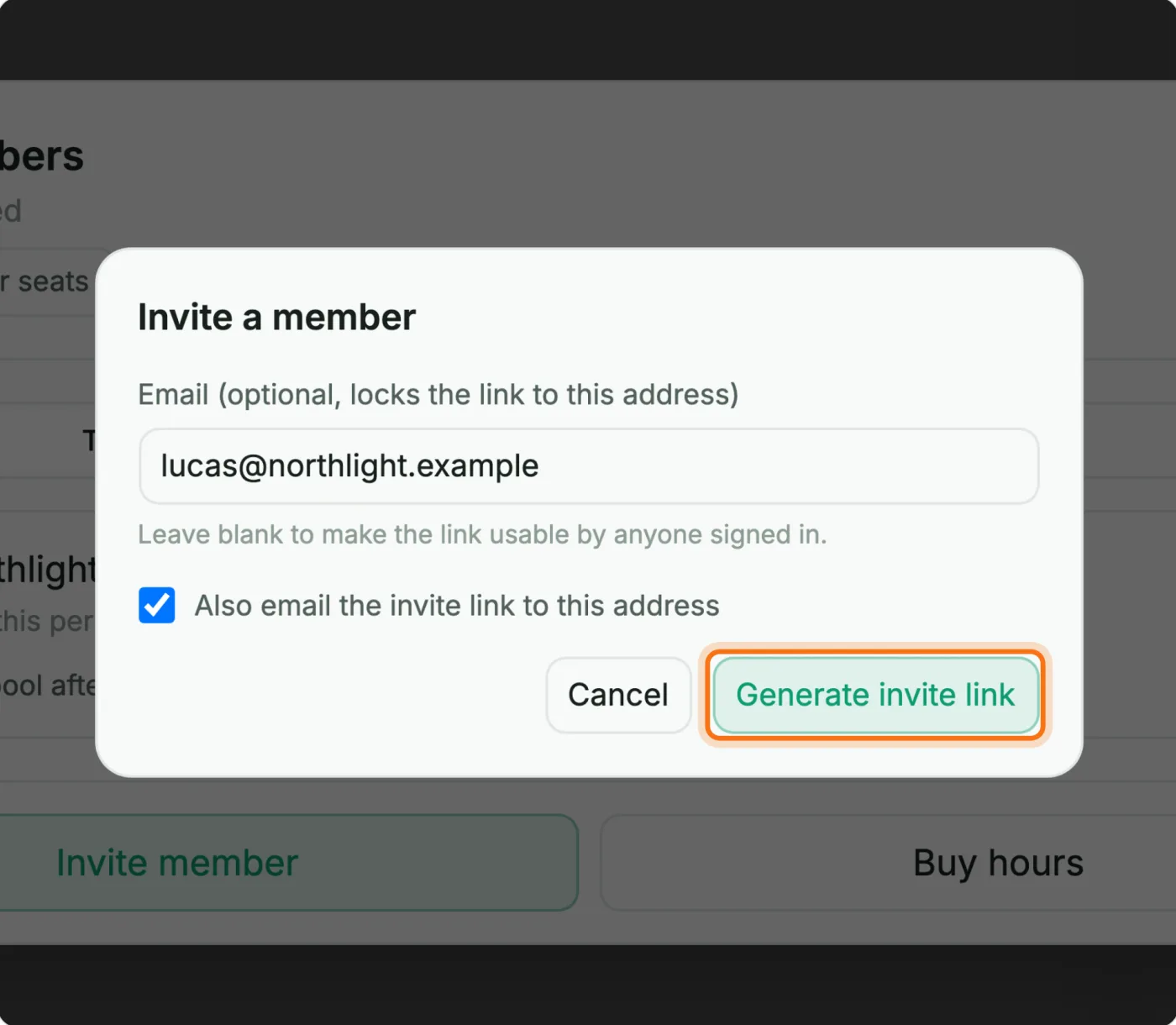
The email is optional. If you enter one, only that address can use the link. If you leave it blank, anyone who is signed in can use it. Tick "Also email the invite link to this address" if you want MirrorCaption to send the invite for you, then click "Generate invite link".
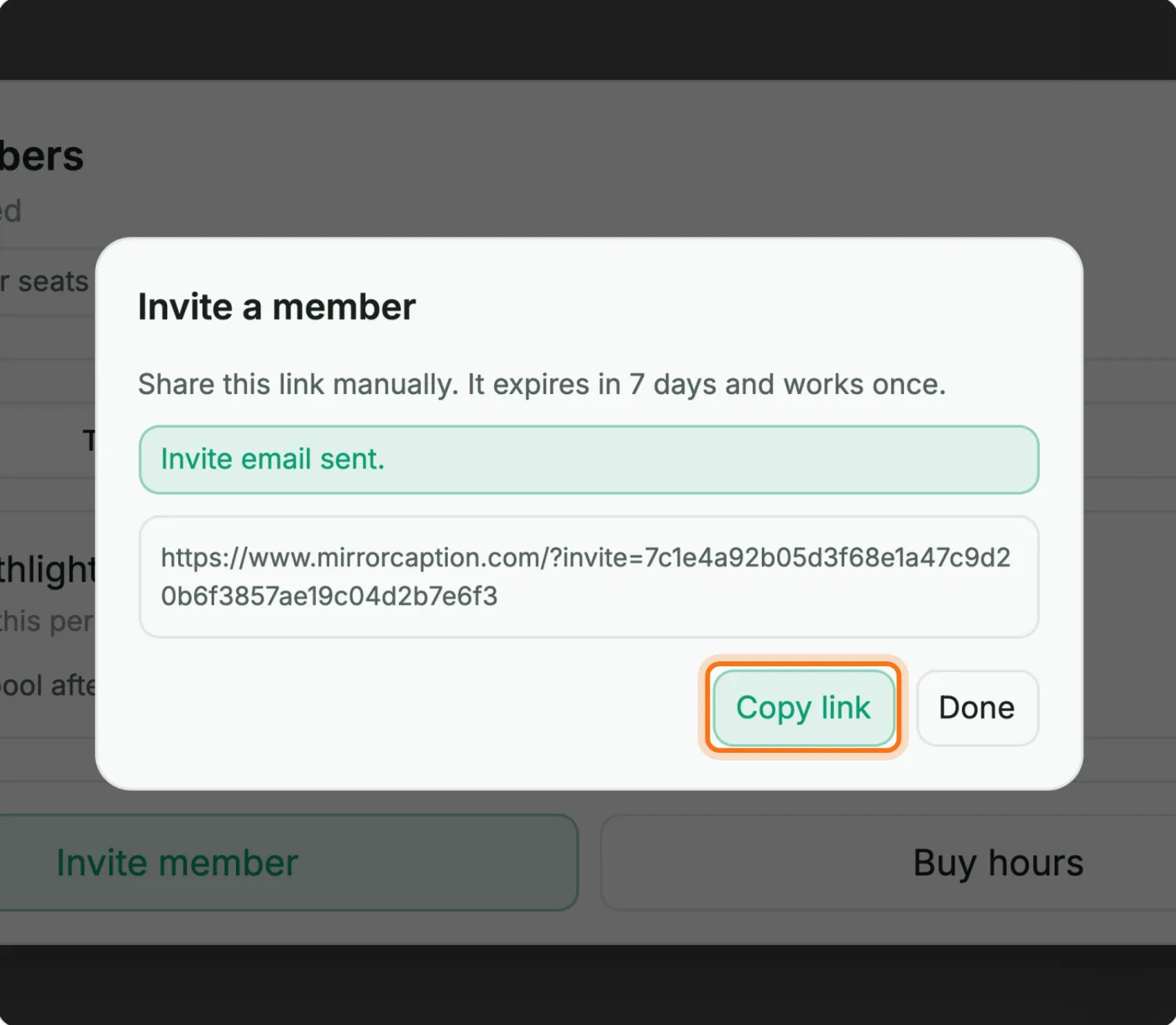
Click "Copy link" and send it any way you like. The link works once and expires after 7 days.
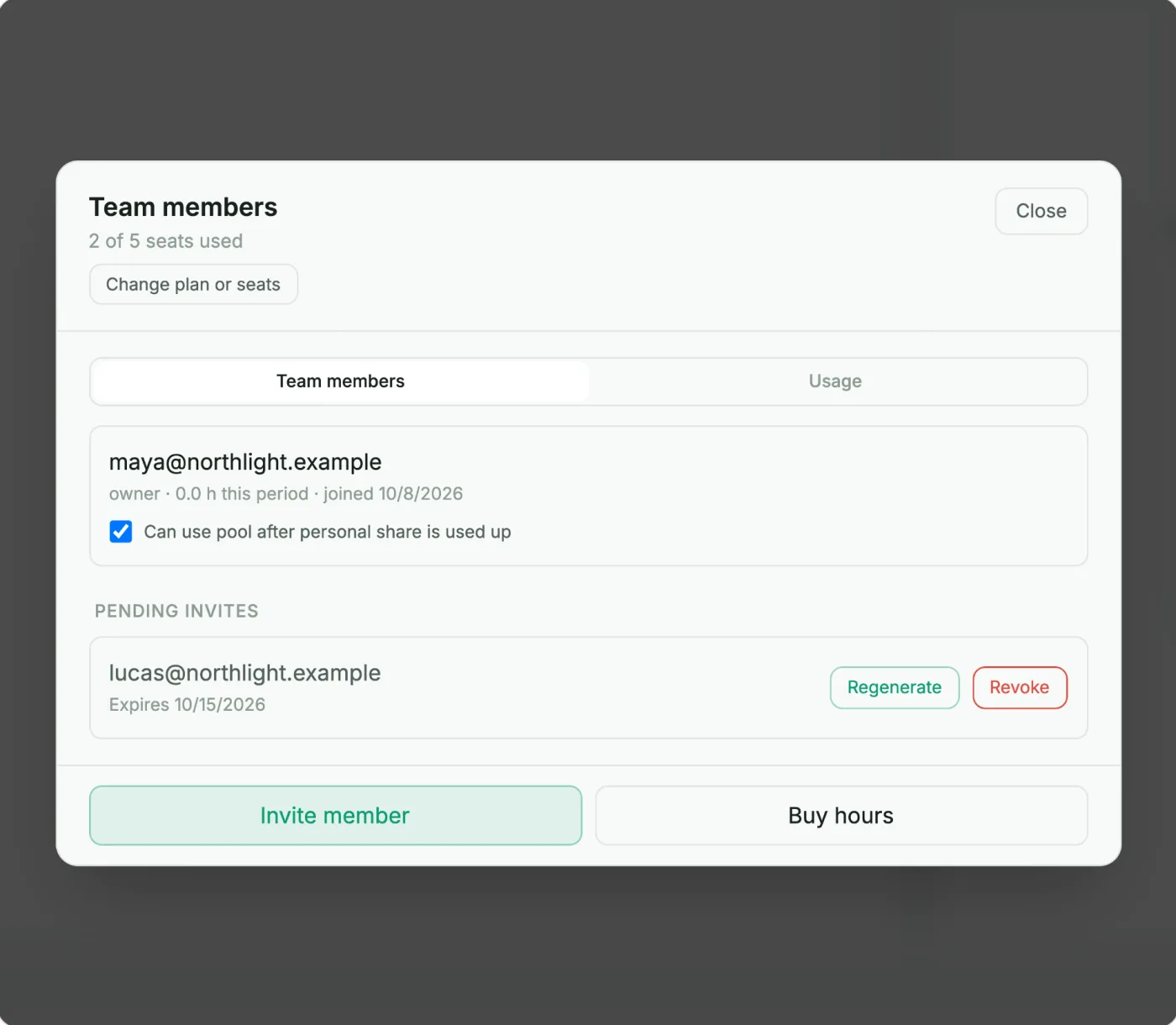
The invite appears under "Pending invites" and holds a seat until it is used or expires. If the link gets lost, click "Regenerate" for a new one. Click "Revoke" to cancel it and free the seat.
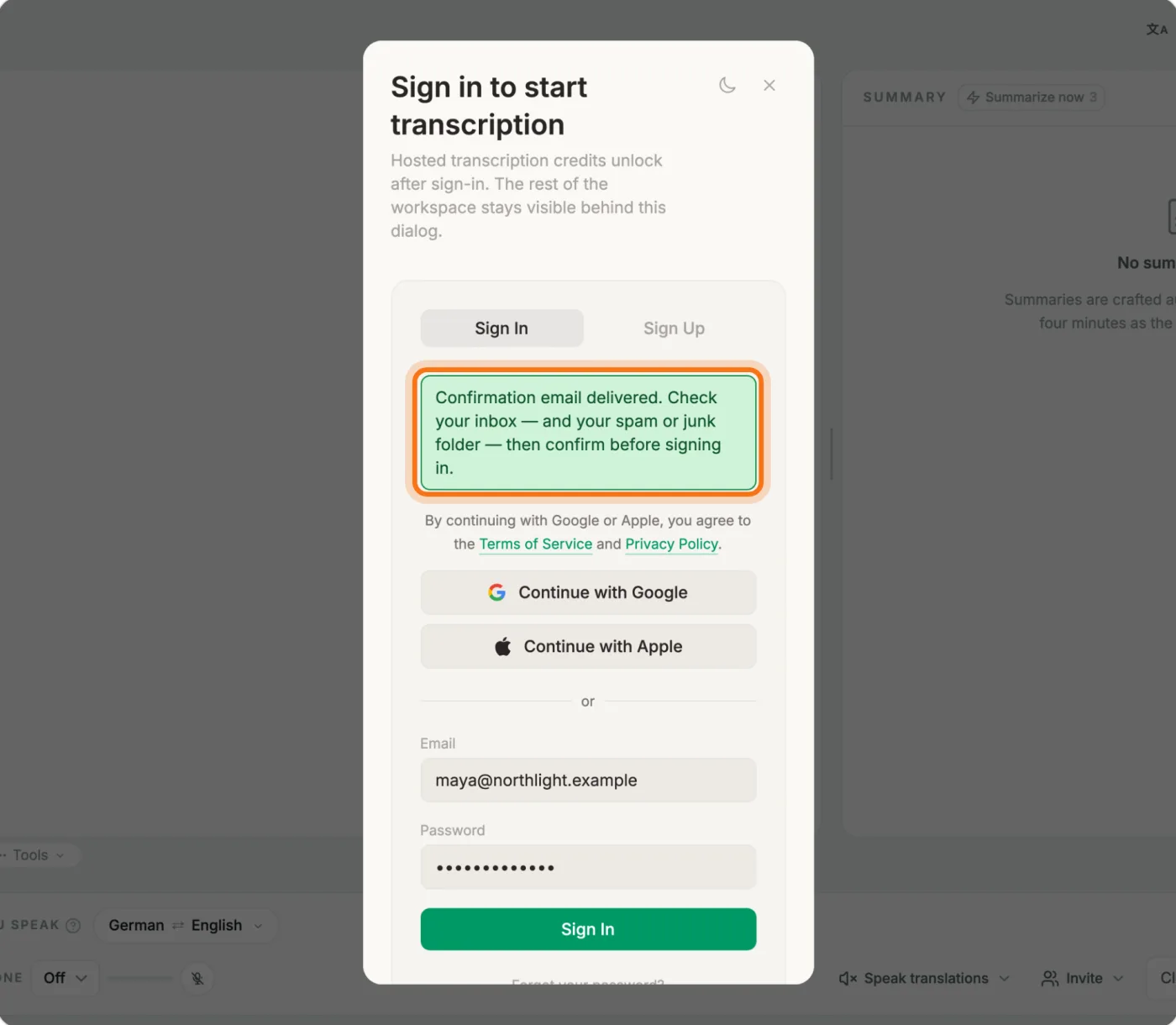
Your colleague opens the link, signs up or signs in, and lands in your team. From then on their transcription time comes out of the shared pool. To take someone off the team later, click "Remove" on their row.
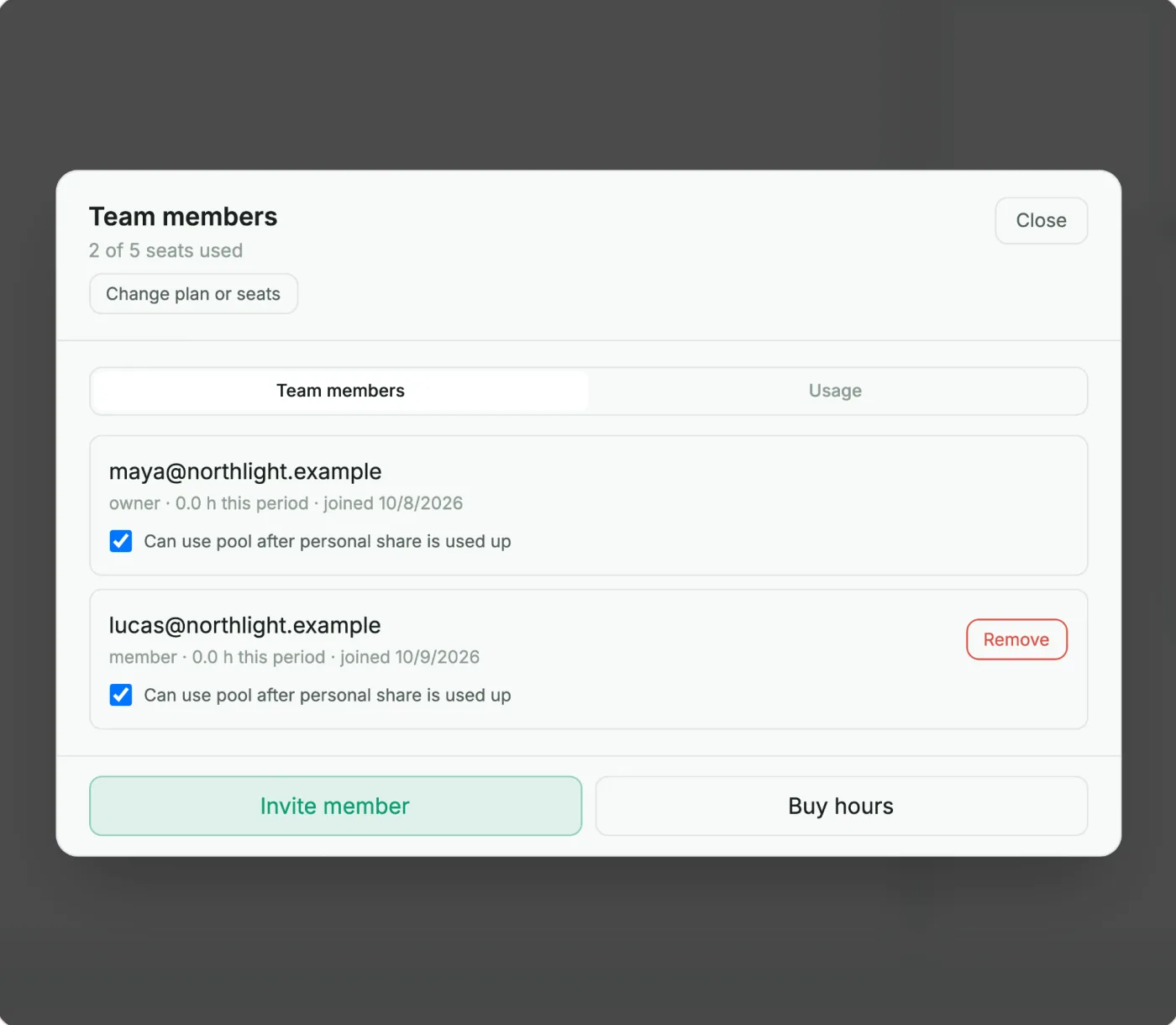
Each member has their own share: 40 hours for each month of the billing period, so 40 hours on monthly billing and 480 on yearly. With "Can use pool after personal share is used up" ticked, which is the default, a member who uses up their share keeps going on hours the rest of the team has not used. Untick it and that member's transcription stops at their own share until the next period. Your own row has the same box.