Step 1 — Start captions in MirrorCaption
Under You speak, choose the language you talk in and the language viewers should read (1). Turn System Audio off so game sound and in-game voices are not captioned (2). Click Start transcription (3).

Speak your own language while viewers read the translation on top of your gameplay. The captions go into OBS as an ordinary window source, with no plugin and no chroma key.
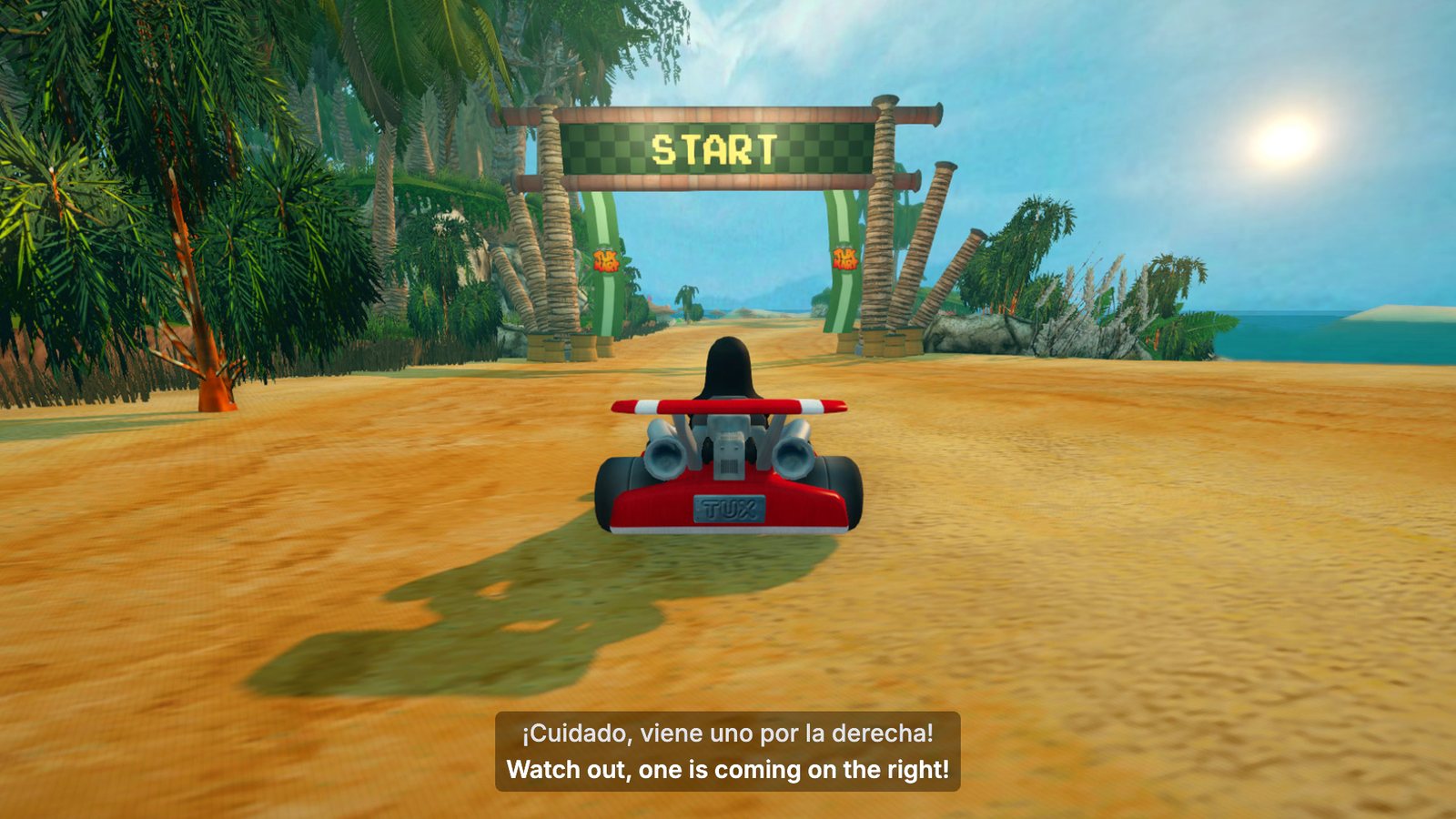
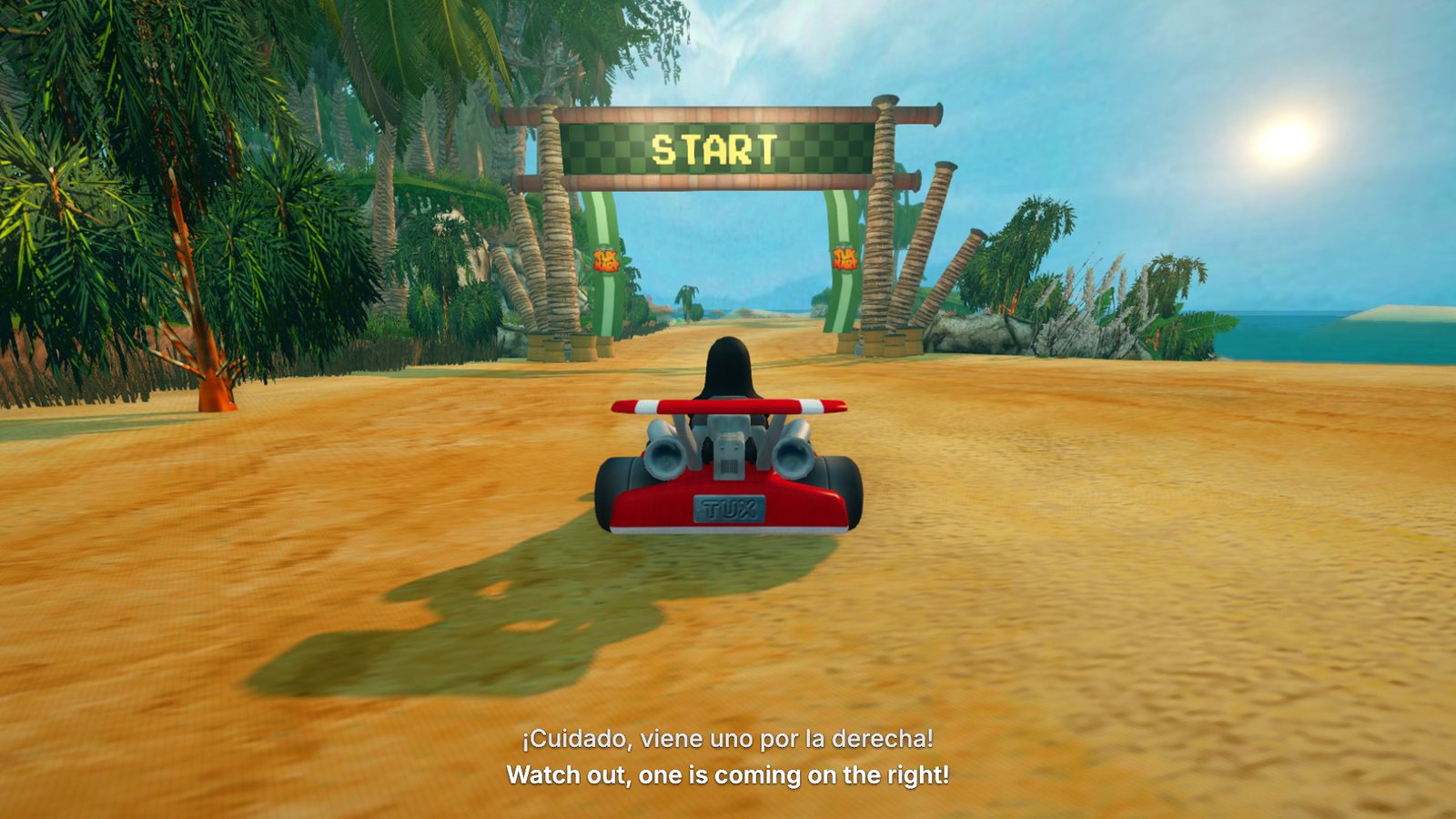
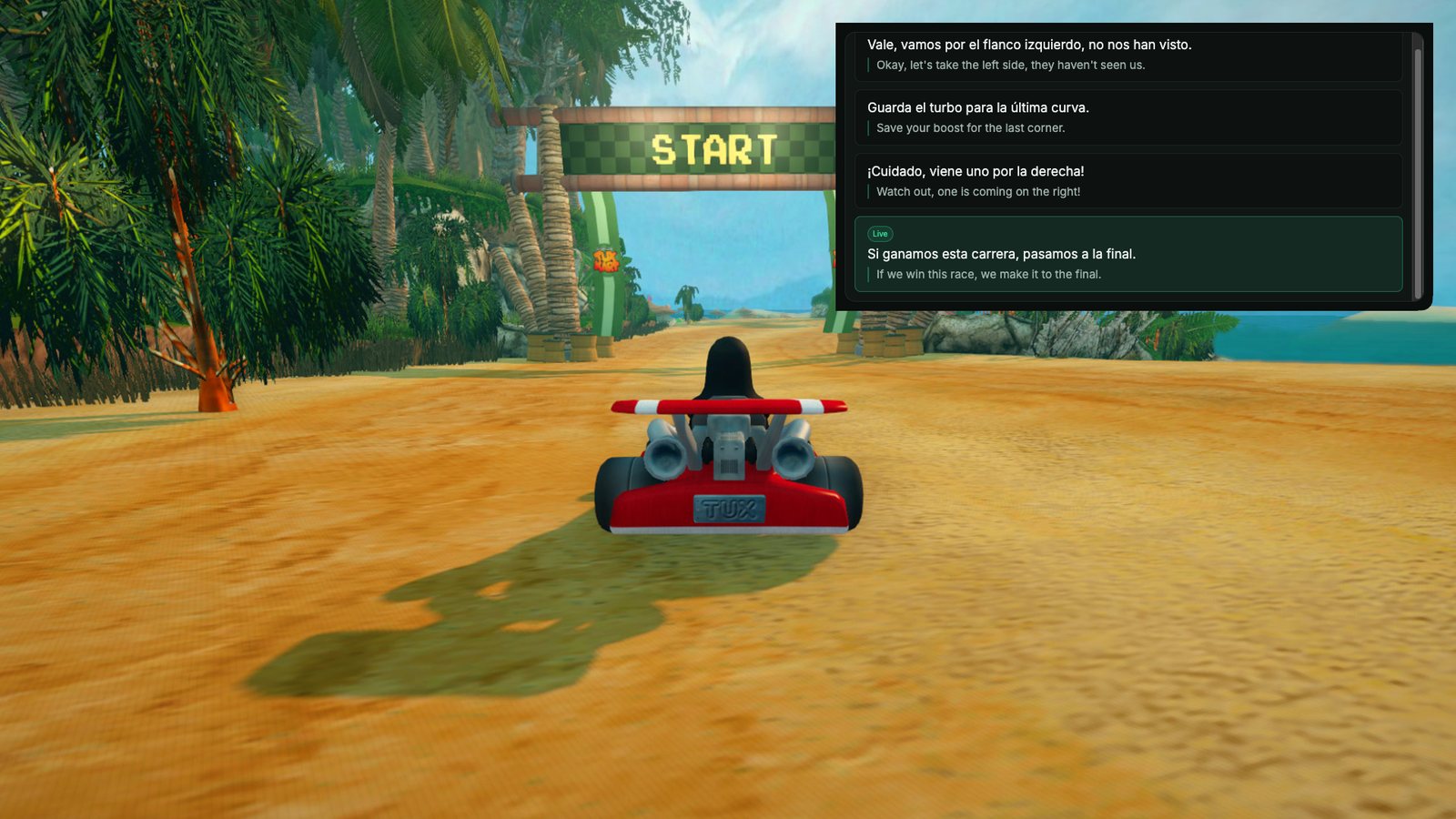
MirrorCaption has two floating windows, and OBS can capture either one. Subtitles suits most streams, because only the words sit on top of the game.
| Feature | Subtitles (transparent) | Float (opaque) |
|---|---|---|
| Viewers see | The latest lines, centered, with the game showing through | A panel of recent lines with a live highlight |
| Styling | Text size, six colors, dimmed or no background, original above, below or off | Five text sizes; follows the app theme |
| OBS setup | Nothing extra: the background is already transparent | Crop off the left rail and top strip |
Under You speak, choose the language you talk in and the language viewers should read (1). Turn System Audio off so game sound and in-game voices are not captioned (2). Click Start transcription (3).
Click Float in the control bar (4 above). For transparent captions, click Subtitles in the left rail of the window that opens. To go back, hover over the captions and click Panel. MirrorCaption opens the style you used last.
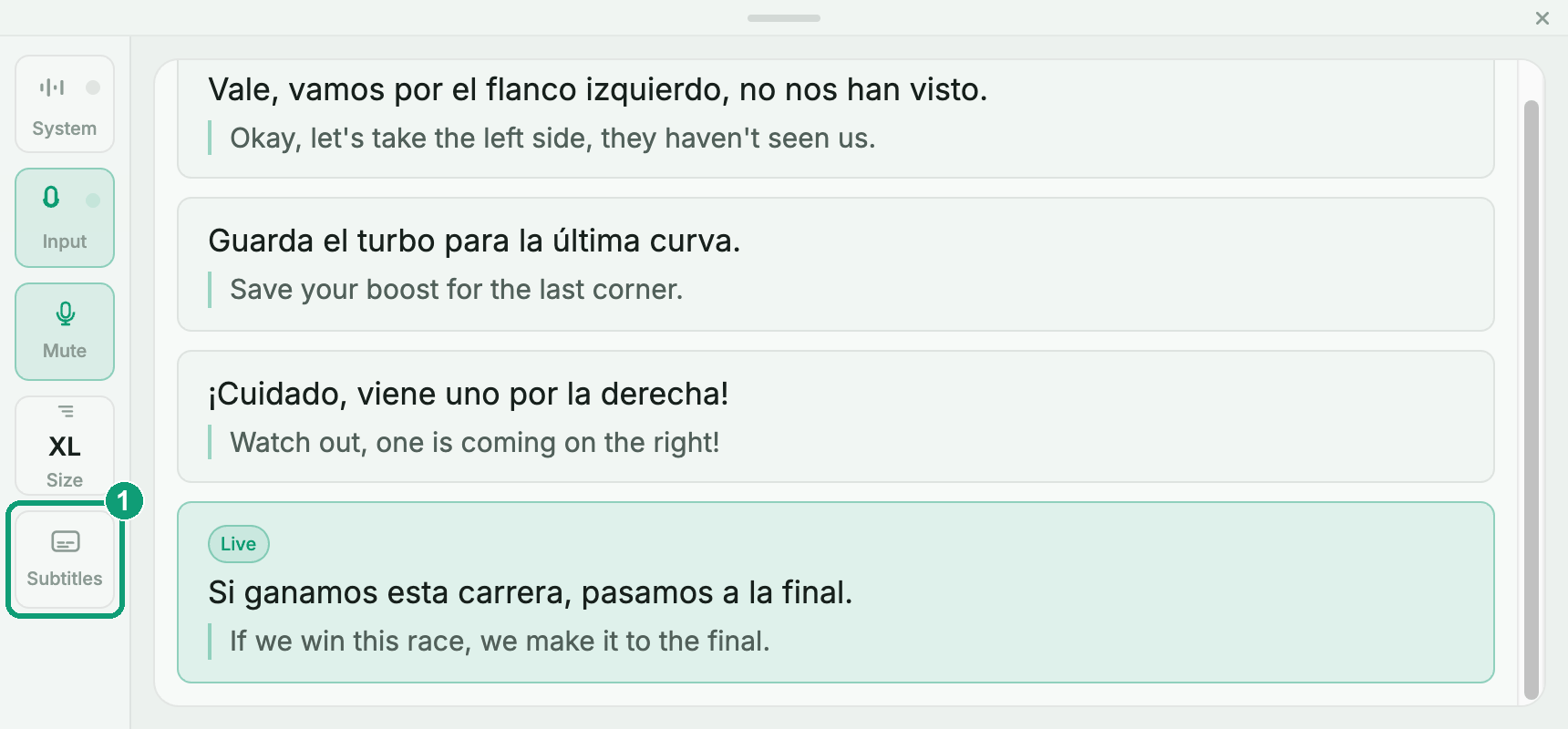
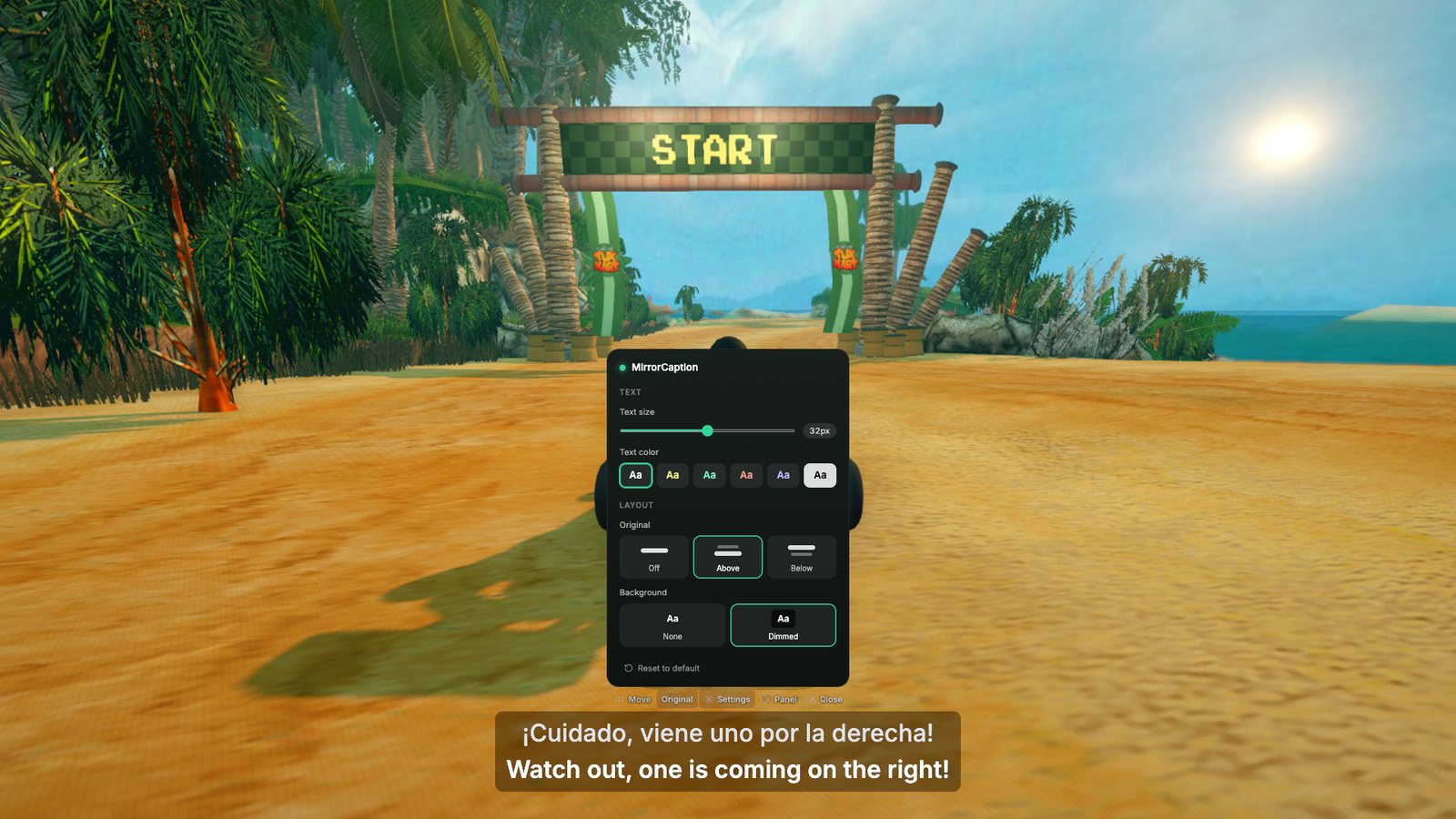
Hover over the captions and click Settings to set the text size, color, background and whether the original line shows. Then close the panel and move your mouse away.
In the Sources panel, click + and choose macOS Screen Capture. Set Method to Window Capture and pick your game window. If a full-screen game is not listed, tick Show fullscreen and hidden windows / applications.
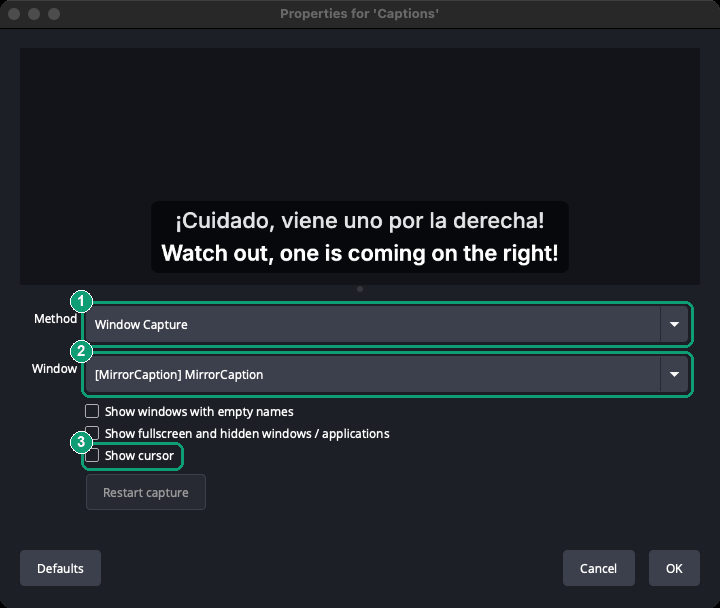
Add another macOS Screen Capture and name it Captions. Set Method to Window Capture (1) and Window to [MirrorCaption] MirrorCaption (2). Untick Show cursor (3).
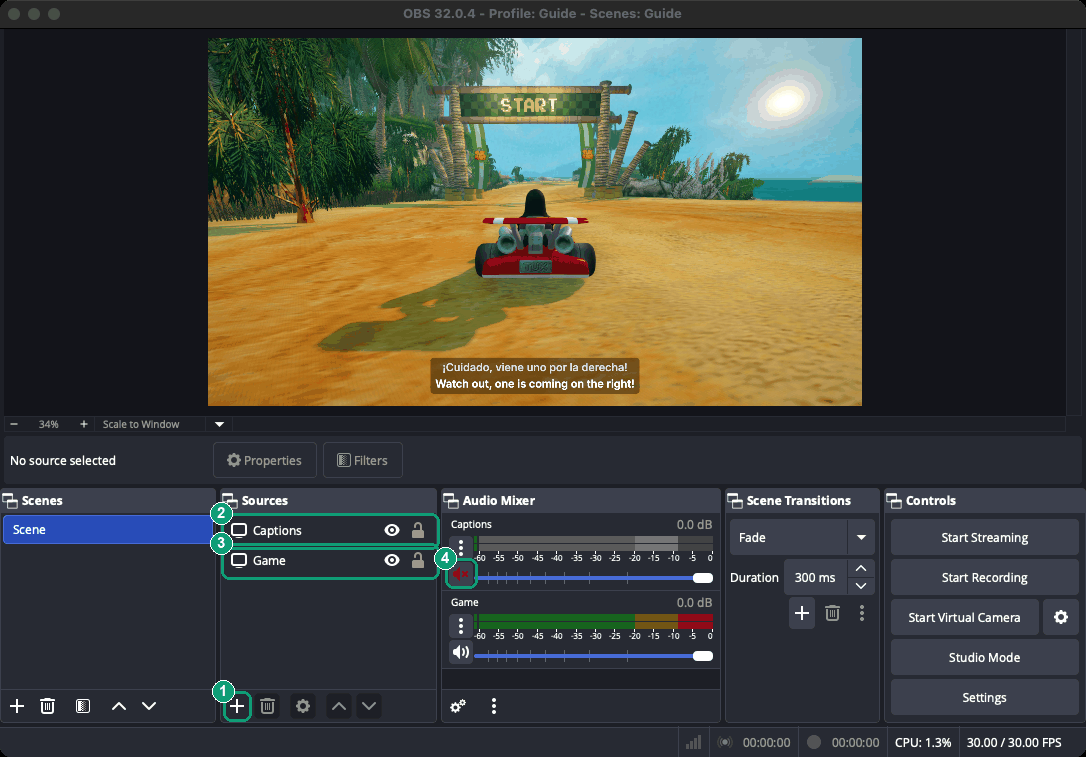
You added both sources with + (1). Keep Captions (2) above Game (3) in the list, or the game will cover it. In the Audio Mixer, mute Captions (4): the window capture adds an audio channel you do not need.
Drag Captions to a clear part of the scene, away from the minimap, scores and health bars. Moving the window on your own screen does not move it in OBS.
Click Start Recording in OBS and talk for 30 seconds. Play it back and check that the captions keep updating, stay readable and cover nothing important.
Screenshots: MirrorCaption 1.0.17 and OBS 32.0.4 on macOS, with sample caption text. Game: SuperTuxKart by the STK dev team, CC BY 3.0; scaled, with captions added.
